


Are you confident your WordPress site is truly healthy?

WordPress Care Essentials: The Foundation Of A Healthy Website
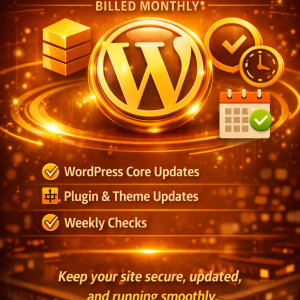
WordPress Care Essentials is a comprehensive website maintenance package designed to keep your site secure, fast, reliable, and easy to manage. When you rely on WordPress for your business, blog, or portfolio, you’re balancing content, functionality, and user experience. The Care Essentials package gives you a structured plan that covers core updates, plugin and theme updates, and weekly checks. By combining these elements, you reduce risk, improve performance, and free up your time to focus on what you do best.
In this article, you’ll discover why updates matter, how weekly checks contribute to a healthy site, and how the WordPress Care Essentials framework helps you protect and improve your online presence. You’ll also find practical guidance, real-world scenarios, and actionable steps you can take to make your WordPress site more resilient.
Why updates matter for your WordPress site
Updates are more than just new features or eye-catching release notes. They are essential maintenance actions that directly impact security, performance, compatibility, and reliability.
- Security patches reduce exposure to new and existing vulnerabilities.
- Performance improvements can speed up page loads, which affects user satisfaction and search engine rankings.
- Compatibility updates keep your site functioning as WordPress core, plugins, and themes evolve.
- Bug fixes resolve issues that can cause downtime or misbehavior, ensuring your site behaves predictably.
Neglecting updates creates cumulative risk. A single missed core update may open a path for exploitation, while outdated plugins or themes can introduce conflicts, slowdowns, or vulnerabilities. By staying current, you’re working proactively to prevent problems before they disrupt your visitors or your business operations.
Below, you’ll see how the care approach translates into concrete actions for core software, plugins, and themes. Each component plays a distinct role, and together they form a solid foundation for a healthy WordPress site.
WordPress core updates: What they are and why they matter
Core updates are the backbone of your WordPress installation. They bring security patches, new features, performance improvements, and compatibility fixes that keep WordPress running smoothly with the latest technologies.
- Security improvements: Core updates address known vulnerabilities and strengthen the overall security posture of your site.
- Stability and reliability: Updates fix bugs and reduce the chances of bugs manifesting as downtime or broken features.
- Feature enhancements: Core updates often include improvements that impact the admin experience, media handling, and general performance.
Why you should treat core updates with priority:
- Core updates affect every part of WordPress. If you skip them, you may miss critical security fixes that leave your site exposed.
- Some older themes and plugins rely on outdated core behavior. When you update core without checking compatibility, you might encounter conflicts that break functionality.
- A disciplined approach to core updates, including testing in a staging environment, reduces risk and gives you confidence that the site remains stable during deployment.
Best practices for core updates:
- Schedule regular updates during a maintenance window that minimizes user disruption.
- Create a fresh backup before applying core updates.
- Test key areas of your site after the update: homepage, contact forms, search, login, and any critical workflows.
- Use a staging environment when possible to validate changes before pushing them to production.
Plugin and theme updates: Keeping components in sync
Plugins and themes extend WordPress functionality and design. They are also the source of a large portion of compatibility issues when not kept current.
- Security patches: Plugins and themes with known vulnerabilities are common attack vectors. Regular updates close those gaps.
- Compatibility: Updates align with changes in WordPress core and with each other. If a plugin or theme becomes out of date, it may fail or conflict with other parts of your site.
- Performance improvements: Updated plugins often include performance enhancements, bug fixes, and better compatibility with modern hosting environments.
Why weekly checks matter for updates:
- Updates can introduce new issues that weren’t visible before. A weekly cadence helps you catch conflicts early.
- Dependencies evolve quickly. By keeping plugins and themes up to date, you maintain a cohesive ecosystem where components work together rather than in isolation.
- You gain predictability. Regular updates reduce the likelihood of large, disruptive update cycles that can catch you off guard.
Best practices for plugin and theme updates:
- Test critical plugin and theme updates in a staging environment before applying them to production.
- Back up before updating, so you can roll back if something goes wrong.
- Update in small, manageable steps rather than performing a bulk update all at once, especially on a live site.
- Audit plugins and themes periodically to remove outdated or unused items that introduce risk.
Weekly checks: The heartbeat of your site
Weekly checks act as a consistent, proactive monitoring process. They help you detect problems early, verify that updates didn’t disrupt functionality, and ensure the site remains healthy in real time.
What weekly checks typically cover:
- Security posture: scanning for malware, suspicious changes, and user activity anomalies.
- Site health and uptime: monitoring response times and availability to catch performance degradation or outages early.
- Backups: confirming that automated backups are running and can be restored.
- Performance indicators: page load speeds, database size, and caching efficiency.
- Content and forms: ensuring new content is rendering correctly and that forms capture and deliver data as expected.
- SEO signals: checking for broken links, sitemaps, and essential on-page elements.
- Error logging: reviewing PHP errors, JavaScript errors, and server issues that can degrade user experience.
- Access control: verifying that user roles, permissions, and login activity remain secure and appropriate.
The combination of weekly checks with regular updates creates a safety net that catches problems before they escalate. You’ll have more time to focus on development, design, and growth rather than firefighting after issues arise.
The weekly checks checklist (structured overview)
The following table outlines a practical weekly checks framework. It’s designed to be comprehensive but actionable, so you can implement and adapt it to your site’s specific needs.
| Area | What to verify | Typical frequency | Tooling / Methods |
|---|---|---|---|
| Backups | Ensure a full site backup exists; verify restoration ability | Weekly; plus on any major change | Hosting backup tools,UpdraftPlus, Duplicator, manual backups |
| Core updates | Check for available WordPress core updates and apply if appropriate | Weekly | WordPress dashboard, staging environment |
| Plugin updates | Review plugin update notices; test critical plugins | Weekly | Plugin update screen, staging tests |
| Theme updates | Review theme updates; test on staging | Weekly | Theme options, staging environment |
| Security checks | Run malware scan; verify file integrity; review user activity | Weekly | Security plugins (Wordfence, Sucuri), server logs |
| Uptime and performance | Monitor site uptime; measure page load times | Weekly | Uptime monitoring tools (Pingdom, StatusCake), performance plugins |
| Broken links and SEO health | Check for 404s and sitemap health; review SEO settings | Weekly | SEO tools (Ahrefs, Google Search Console), broken link checkers |
| Forms and submissions | Verify new form entries are being received; test form submission flow | Weekly | Form plugins (Contact Form 7, Gravity Forms), inbox checks |
| Caching and CDN status | Confirm caching layers are functioning; verify CDN delivery | Weekly | Caching plugins, CDN dashboards |
| Error logs | Scan for PHP/JS errors; identify persistent issues | Weekly | server logs, error reporting tools |
| Access control and security | Review user roles; confirm MFA status; audit logins | Weekly | Security plugins, hosting control panel |
How updates are implemented safely
A safe update process reduces risk and ensures you maintain control over the site’s stability. It combines planning, testing, backups, and rollback options so that if something goes wrong, you can recover quickly.
Key steps:
- Establish a staging environment: Make updates in a clone of your live site, so your production site remains unaffected during testing.
- Back up before updates: Create a full backup of the database and files. Store this backup in a trusted location separate from the live environment.
- Review compatibility: Check the compatibility notes for WordPress core, plugins, and themes. Verify PHP version requirements and any known conflicts.
- Update in controlled steps: Apply updates to core, then plugins, then themes, monitoring the site after each set to catch issues early.
- Test critical workflows: Ensure login, navigation, search, forms, e-commerce checkouts (if applicable), and member areas function correctly.
- Prepare a rollback plan: If something doesn’t work, you should be able to revert to the previous state with minimal downtime.
- Communicate maintenance windows: If the site serves customers, announce maintenance windows to minimize disruption and set expectations.
Why staging plus backups matter:
- Staging acts as a shield, protecting your live visitors from the potential consequences of updates.
- Backups provide a safety net. If an update breaks something, you can restore to a known good state swiftly, often within minutes.
Risks and mitigation: what can happen and how to handle it
Even with best practices, updates carry some risk. Here are common scenarios and practical remedies.
- White screen of death after a plugin update: Deactivate the plugin via the admin dashboard or FTP, then test in staging. Restore from backup if needed.
- Admin login issues after a core update: Clear caches, disable security rules temporarily, verify PHP compatibility, and test with a default theme.
- Theme incompatibility after plugin updates: Activate a fallback theme in staging to identify if the issue is plugin-related, then adjust or replace conflicting components.
- Performance regression: Reassess caching rules, database queries, and CDN configuration. Roll back if necessary and re-validate after isolating the root cause.
- Broken forms or e-commerce checkout: Check form handler settings, payment gateway configurations, and recent plugin updates. Recreate test scenarios and ensure data is captured properly.
Mitigation strategies:
- Maintain a precise rollback plan and script-ready backups.
- Maintain a prioritized list of must-have features; if a non-critical feature breaks, you can plan a fix without losing core functionality.
- Use a staged approach to testing. Don’t assume a fix works broadly until it passes scenario testing.
Real-world scenarios: practical illustrations
Scenario A: A mid-sized business site experiences slower performance after a routine core update.
- What happened: The core update introduced new resource handling that interacted oddly with an aging caching plugin.
- How Care Essentials helped: The weekly checks detected the slowdown early, while the staging environment allowed testing of the core update with the caching plugin. A rollback plan was already in place, and a patched plugin update stabilized performance without sacrificing security.
- Outcome: Page speeds improved, uptime remained stable, and the marketing team could continue its campaign with confidence.
Scenario B: A blog with a frequent content program notices occasional 500 errors after a plugin update.
- What happened: An updated plugin conflicted with a custom function in the theme.
- How Care Essentials helped: Immediate test on staging revealed the conflict before users were affected. The team rolled back the plugin update, reported the issue to the plugin author, and deployed a fix after a subsequent compatible update.
- Outcome: Users didn’t experience downtime, and content publishing continued with minimal disruption.
Scenario C: An e-commerce site sees a sudden rise in cart abandonments after weekly checks reveal caching misbehavior.
- What happened: Caching layers started serving outdated cart data due to a misconfiguration after a theme update.
- How Care Essentials helped: The issue was identified, corrected, and tested in staging. A clear runbook allowed rapid redeployment, restoring smooth cart operations.
- Outcome: Conversion rates stabilized, and customer trust remained intact.
The value proposition of WordPress Care Essentials
Think of WordPress Care Essentials as a steady foundation rather than a reactive fix. This approach brings several concrete advantages:
- Reduced risk of security breaches: By applying core and component updates promptly, you close known vulnerabilities that attackers look for.
- Improved site reliability: Regular checks catch issues that could otherwise go unnoticed until a visitor encounters them.
- Faster recovery from problems: A pre-defined rollback plan and tested backups shorten downtime and minimize revenue impact.
- Time and resource efficiency: You avoid ad-hoc problem-solving and can allocate resources to growth initiatives rather than firefighting.
- Consistent performance: Regular maintenance helps maintain fast page loads, better user experience, and higher search engine rankings.
How to implement WordPress Care Essentials on your site
Getting started with Care Essentials involves a few practical steps that align with your site’s needs and your operational preferences.
- Define maintenance windows: Decide on a weekly cadence that minimizes disruption for your audience. For many sites, a Sunday or overnight window works well.
- Establish backup routines: Confirm that automated backups run consistently and that you can restore from the most recent reliable version.
- Set up a staging environment: If you don’t already have one, create a staging site to test updates before applying them to production.
- Create a bug-tracking pathway: Document issues and their resolutions to improve future maintenance cycles.
- Align with your hosting setup: Some hosting providers offer integrated maintenance features. Use them where appropriate, but ensure you retain control over the update process.
- Communicate with stakeholders: Keep business owners, editors, and IT teams informed about maintenance plans and expected outcomes.
Why weekly checks are essential for ongoing health
Weekly checks act as an early warning system and a health audit for your WordPress site. They are proactive rather than reactive, helping you identify and address issues before they escalate into customer-impacting problems.
- They reduce the likelihood of large, disruptive incidents that affect user experience.
- They create a predictable maintenance rhythm that your team can trust.
- They provide valuable data points for performance improvements and content strategy.
A closer look at the core components of WordPress Care Essentials
The Care Essentials package centers on three interlocking pillars: WordPress core updates, plugin/theme updates, and weekly checks. Each pillar supports the others, creating a stable, fast, and secure site.
- Core updates keep WordPress current and secure.
- Plugin and theme updates ensure compatibility and feature availability.
- Weekly checks verify that updates have not introduced issues and that the site remains healthy week after week.
Here are practical summaries of what each pillar delivers:
- Core updates: Security, stability, and feature improvements that keep your WordPress installation fresh and supported.
- Plugin updates: Security patches, compatibility fixes, and performance enhancements for third-party components.
- Theme updates: Design and functionality improvements that align with WordPress core changes and modern web standards.
- Weekly checks: Ongoing monitoring, issue detection, and verification of backups, performance, and security.
A practical framework for ongoing maintenance
You can implement a practical framework that balances thoroughness with efficiency. The idea is to be systematic, not overly complex. Use repeatable processes, checklists, and defined escalation paths so that your team (or you) can execute maintenance without guesswork.
- Use checklists: A weekly checklist keeps you focused on the essential tasks and reduces the chance of missing a step.
- Standardize test scenarios: Create a set of test cases to verify after updates that cover critical site paths (home, products, forms, checkout, login).
- Maintain version control for configurations: Track changes to database configurations, caching rules, and security settings to understand what caused a particular outcome.
- Document your rollback plan: In the event of an issue, you should be able to revert quickly with a proven method and a tested backup.
Troubleshooting and escalation: where to turn when issues arise
Even with a solid process, you might encounter issues that require deeper expertise. Here’s a simple guide to escalation that keeps you in control:
- Step 1: Reproduce the issue in staging. Confirm it’s not a transient server or network problem.
- Step 2: Isolate the cause. Turn off recently updated plugins one by one, or switch to a default theme to determine whether the issue is theme-related.
- Step 3: Check logs and data. Review PHP errors, JavaScript console logs, and server logs to identify root causes.
- Step 4: Develop a fix plan. Decide whether to update a specific plugin, adjust configuration, or revert to a prior version.
- Step 5: Validate in staging. Ensure the fix resolves the issue without creating new problems.
- Step 6: Deploy with care. Apply the fix to production under a tested maintenance window, followed by post-deployment checks.
- Step 7: Document and debrief. Record what happened, how it was resolved, and any follow-up tasks.
The business case: return on investment and risk management
Investing in WordPress Care Essentials isn’t just about preventing problems—it’s about enabling growth with confidence. When you measure the impact:
- Reduced downtime translates to more visitor engagement and revenue opportunities.
- Consistent performance helps protect your search engine ranking and conversion rates.
- Predictable maintenance reduces emergency spending on urgent fixes and makes budgeting easier.
- A secure site stabilizes your brand reputation, especially if you handle sensitive customer data.
If you compare this approach with reactive maintenance, you’ll usually find that proactive care saves both money and time in the long run.
A quick glance at the components in a summarized form
To recap, the core ideas behind WordPress Care Essentials are straightforward:
- Core updates: Regular, managed updates to WordPress core for security and performance.
- Plugin and theme updates: Timely updates to keep ecosystem components compatible and secure.
- Weekly checks: Ongoing verification of health, performance, security, and recovery readiness.
These elements work together to create a resilient WordPress environment that serves as a strong foundation for your online activities.
How to evaluate whether Care Essentials fits your site
Your site’s needs determine the appropriate maintenance plan. Here are a few questions to guide your evaluation:
- How frequently do you publish content or run campaigns? If you have a high-traffic or high-conversion site, weekly checks are particularly beneficial.
- Do you rely on third-party plugins or complex themes? Regular updates and compatibility testing become more important as dependencies increase.
- Is your team able to perform safe updates, or would you benefit from a managed approach? If you prefer certainty and reduced risk, Care Essentials offers a structured, managed process.
- How critical is uptime for you? If even short downtime hurts revenue or user trust, a formal maintenance program offers the protection you need.
Getting started with WordPress Care Essentials
If you’re ready to establish a reliable maintenance routine, consider the following starting steps:
- Assess your current update and backup practices: Do you have a consistent schedule? Are backups tested and trustworthy?
- Set up a staging environment: If you don’t have one, create a clone of your site to test updates safely.
- Define roles and responsibilities: Decide who is responsible for applying updates, performing weekly checks, and handling issues.
- Schedule weekly maintenance windows: Pick a consistent time when you can devote focused effort to maintenance tasks.
- Document a clear rollback plan: Prepare step-by-step instructions for reverting updates if issues arise.
FAQs
- How often should I perform core updates? In most cases, core updates should be reviewed and applied as soon as they’re stable and tested in staging, with a disciplined weekly cadence to avoid backlog.
- What if an update breaks something? Use a staging environment to test, roll back from a backup if needed, and consult plugin/theme developers for compatibility guidance.
- Do I need a staging environment? A staging environment is highly recommended for any site with real traffic or complex functionality. It minimizes production risk during updates.
- Can I automate maintenance tasks? Yes, automation helps with backups, monitoring, and basic update workflows, but you should always verify critical updates in a controlled manner before deploying to production.
- How long does it take to implement Care Essentials? The initial setup can take a few hours to establish a staging workflow, backup routines, and checklists. Ongoing maintenance typically requires a few hours per week, depending on site complexity and traffic.
Final thoughts
WordPress Care Essentials provides a practical, reliable foundation for maintaining a healthy website. By prioritizing core updates, keeping plugins and themes current, and conducting thorough weekly checks, you reduce risk, improve performance, and protect your investment. The framework offers a repeatable, accountable process that adapts to changing technology and evolving user needs.
With this approach, you’re not just reacting to problems—you’re building resilience into the fabric of your site. You’ll enjoy greater peace of mind, better user experiences, and a more stable platform for growth. If you’re looking for a clear, comprehensive path to a healthier WordPress site, WordPress Care Essentials is designed to deliver.
If you’d like, I can tailor this framework to your specific setup—whether you’re running a simple blog, a busy e-commerce storefront, or a complex multi-site network. Tell me about your current hosting environment, the plugins you rely on, and any recent challenges you’ve faced, and I’ll outline a customized maintenance plan that aligns with your goals and resources.








0 Comments