


Have you ever wondered what it takes to keep a WordPress website healthy, secure, and performing at its best over time?

What Is WordPress Care Essentials? A Simple Guide to Ongoing Website Maintenance
WordPress Care Essentials is a focused maintenance package that covers the routine tasks necessary to keep your site running smoothly. You get continuous updates, regular checks, and preventative measures so you can concentrate on content, customers, and growth rather than technical surprises.
The core purpose of a maintenance package
The main goal of a WordPress Care Essentials plan is to reduce risk and downtime by proactively maintaining your site. You’ll avoid many common issues caused by aging software, plugin conflicts, and resource overload through scheduled, predictable maintenance.
What you should expect from “Care Essentials”
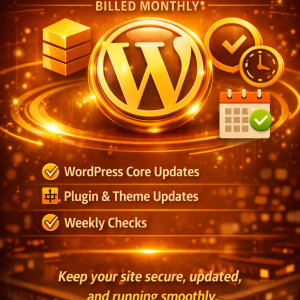
Care Essentials typically includes WordPress core updates, plugin and theme updates, weekly checks, backups, monitoring, and basic security scanning. These services are tuned to keep your site secure, compatible with modern environments, and reliably available for visitors.
Core components of WordPress Care Essentials
Every plan varies, but the essential components focus on keeping software current, protecting against threats, and ensuring consistent performance. You’ll want a plan that covers both automated tasks and manual verification steps.
WordPress core updates
Updating the WordPress core ensures that your website runs on the latest supported codebase, which includes security patches and compatibility improvements. If you skip core updates you expose your site to vulnerabilities and potential incompatibilities with modern PHP versions and plugins.
Plugin and theme updates
Plugins and themes are third-party code that extend your site’s features and appearance; they require regular updates just like WordPress core. You’ll need updates to fix bugs, close security holes, and maintain compatibility between components.
Weekly checks
Weekly checks are manual or automated reviews that confirm updates haven’t caused problems, verify backups succeeded, and identify new issues early. By checking weekly, you minimize the window for undetected problems to grow into site outages or data loss.
Backups and restore testing
Backups let you recover quickly if an update or hack breaks your site, but a backup is only useful if you test it regularly. You’ll want automated backups with stored copies off-site and periodic restore tests to confirm recoverability.
Security scanning and monitoring
Regular security scans detect malware, suspicious file changes, and known vulnerabilities so you can respond quickly. Continuous monitoring, including uptime checks, helps you know the moment your site becomes unavailable.
Performance and resource monitoring
Performance tasks include caching checks, image optimization, database cleanup, and tracking server resource usage. If you monitor performance, you’ll be able to identify slow pages, heavy plugins, or hosting problems before visitors notice.
Why updates are needed
You might think updates are just nuisance interruptions, but they are fundamental to your site’s survival, user experience, and legal safety. Every update is a small investment in preventing larger costs later.
Security patches and vulnerabilities
Every software package can have vulnerabilities; updates almost always include patches that close those holes. If you delay updates, attackers can exploit known vulnerabilities to inject malware, steal data, or deface your site.
Compatibility and environment changes
Hosting environments change over time — PHP versions get updated, MySQL/ MariaDB upgrades happen, and server libraries get tweaked. Updates keep your plugins, themes, and core compatible with the hosting environment so your site continues to function properly.
Bug fixes and stability
Updates frequently resolve bugs that cause crashes, slowdowns, or unexpected behavior. When you apply updates regularly, you reduce the chance of encountering hard-to-diagnose stability problems that can affect user trust and conversions.
Feature improvements and performance gains
Developers often add optimizations and new features in updates that you’ll miss if you’re on an old version. These can improve load times, mobile responsiveness, and the effectiveness of SEO or e-commerce features.
Why weekly checks are necessary
Weekly checks create a predictable rhythm for maintenance so small problems are caught quickly and fixed before they escalate. This frequency balances effort and effectiveness for most small-to-medium sites.
Catch small problems before they become big
A plugin conflict might initially show as a minor styling issue, but left unchecked it can cascade into broken functionality. Weekly checks help you identify and reverse those changes before they affect conversions or user experience.
Confirm backups and monitoring are working
Automated systems can fail silently due to storage limits, permissions, or API changes. By verifying backups and monitoring weekly, you ensure you can actually restore if something goes wrong.
Keep performance at expected levels
Performance can degrade gradually due to content growth, new plugins, or third-party scripts. Weekly performance checks let you spot trends and apply optimizations before user metrics and SEO rankings suffer.
Maintain SEO and content integrity
Search engines and users react quickly to broken pages and slow sites. Weekly checks help you catch 404s, canonical issues, and content display errors so your search rankings and user signals stay healthy.
What a typical WordPress Care Essentials package includes
A strong Care Essentials package bundles routine updates with proactive checks and support resources. You’ll want clarity about what’s included and how the provider handles edge cases.
Standard inclusions
- WordPress core updates applied safely
- Plugin and theme updates tested and applied
- Weekly checks covering backups, uptime, errors, and basic security scans
- Automated daily backups with retention
- Monthly performance and security reports Each of these items is aimed at reducing risk and giving you clear visibility of your site’s health.
Optional or add-on services
You’ll often be offered staging environments, restore testing, malware removal, advanced performance tuning, and priority support as add-ons. These options are useful for high-traffic, transactional, or mission-critical websites.
Service level expectations
Care Essentials plans typically include an SLA that defines response time for critical problems and regular reporting cadence. Make sure you understand how emergencies are handled and whether fixes are included or billed separately.
Snapshot: services, frequency, and purpose
The table below summarizes common tasks, how often they should be done, and why they matter so you can quickly compare what each task prevents.
| Task | Typical frequency | Why it matters |
|---|---|---|
| WordPress core updates | As released / weekly review | Fixes security holes and maintains compatibility |
| Plugin & theme updates | Weekly or as released | Prevents conflicts and closes plugin vulnerabilities |
| Backups | Daily, with weekly/monthly retention | Enables full site restore after failures or hacks |
| Backup restore tests | Monthly or quarterly | Confirms backups are usable and data integrity is preserved |
| Uptime monitoring | Continuous | Alerts you to downtime so you can act quickly |
| Malware scanning | Weekly or daily | Detects infections before they spread |
| Performance checks | Weekly | Keeps page speed and server load in check |
| Error log review | Weekly | Finds PHP errors or failures not visible to users |
| SSL certificate checks | Monthly | Ensures secure connections and avoids browser warnings |
| Database optimization | Weekly to monthly | Reduces bloat and improves query performance |
Weekly maintenance checklist — a step-by-step routine
A weekly checklist keeps work consistent and prevents omissions. You can automate many tasks, but manual verification remains essential.
1. Verify backups succeeded and check retention
First, confirm your automated backups completed and that recent backups are intact. Then, verify the retention policy so you have multiple restore points spanning days or weeks.
2. Update site components on staging, then on production
Apply core, plugin, and theme updates on a staging environment first and test functionality. After verifying no issues, schedule the updates for production during low-traffic hours and monitor the site closely.
3. Run a malware/security scan
Use a reliable scanner to check for modified files, suspicious code, and known malware signatures. If anything shows up, isolate the issue, restore a clean backup if necessary, and remediate the vulnerability.
4. Check error logs and server health
Review PHP, web server, and application logs for new warnings or errors. Address recurring issues to prevent them from evolving into user-facing problems.
5. Test critical user flows
Click through vital pages and forms, such as contact forms, e-commerce checkout, login, and subscription flows. If a critical flow fails, you’ll spot the issue before customers do.
6. Verify uptime and SSL
Confirm your uptime monitoring didn’t report downtime and that SSL certificates are valid and not expiring soon. Renew certificates in advance to avoid browser security alerts.
7. Review performance metrics
Check page speed, time to first byte, and server response times. If performance drops, review recent changes and consider cache warming, image optimization, or database cleanup.
8. Confirm third-party integrations
Verify that payment gateways, CRM connections, email providers, and analytics are functioning properly. Third-party API changes can silently disrupt integrations.
9. Clean up database and transient data
Remove expired transients, old revisions, and spam comments to reduce database bloat. This improves backup size and query performance.
10. Document changes and communicate
Log what you updated, what tests were performed, and any issues encountered. If you manage the site for a client or team, communicate changes and next steps clearly.
How updates are performed safely
Applying updates is not just a click-and-forget process; you need safeguards to avoid breaking the site. A safe update workflow defends your site against regressions and data loss.
Use a staging environment
You’ll test updates on a copy of your live site so you can catch compatibility issues without risking production. Staging gives you a safe place to try updates, run regression tests, and preview changes.
Create backups before every update
Always take a fresh backup before applying updates so you can restore the exact state prior to the change. If an update breaks the site, you’ll be able to revert quickly.
Read changelogs and test critical functions
Review the changelog for each plugin or theme to understand what changed; pay special attention to major version updates. Test key functionality after each update to spot any regressions.
Staged rollout and rollback plan
If you manage many plugins, update them in small groups or one-by-one so you can isolate problems. Have a tested rollback procedure so you can restore the previous state reproducibly.
Common update problems and how to handle them
You’ll encounter issues occasionally; understanding common failure modes helps you respond quickly and effectively.
Plugin conflicts
Two plugins may use the same hooks or modify the same templates, causing breakage after an update. To resolve this, deactivate the suspect plugin, test, and contact developers or find alternatives if the conflict persists.
White screen of death (WSOD) or fatal errors
A PHP error can cause a completely blank page. Use error logs or debug mode to identify the issue, restore a backup if needed, and isolate the problematic plugin or custom code.
Theme or layout issues
An update can change markup or CSS that your theme relies on, resulting in display problems. Test themes on staging and, if necessary, revert to the previous version while planning a safe migration or theme update.
Broken forms or e-commerce checkout
Third-party APIs or plugin updates can affect payment flows and contact forms. Perform end-to-end tests for forms and transactions after updates and monitor live transactions closely after each change.
Database schema changes
Major plugin updates may alter the database structure and, if interrupted, cause data inconsistency. Avoid interrupting migrations, and always ensure you have a backup before applying updates that change the DB.
Choosing the right maintenance plan for your site
Your ideal plan depends on your site’s purpose, traffic, complexity, and tolerance for downtime. A brochure site has different needs than an online store or membership platform.
Assess your site’s complexity and risk
If your site handles payments, personal data, or high traffic, you’ll prioritize faster response times, more frequent checks, and advanced security. You’ll want automatic rollback capabilities and more extensive testing for these sites.
Consider your budget and expected ROI
Maintenance costs should be compared to the potential losses from downtime, data loss, or compromised customer trust. For many businesses, a modest recurring fee prevents catastrophic one-time recovery costs.
Decide between DIY and managed services
If you have technical skills and time, you might perform updates yourself, but if you run a business, managed services free you to focus on core operations. A managed plan often includes accountability, reporting, and guaranteed response times.
DIY vs Managed: quick comparison
The table below gives a clear comparison so you can choose the best approach for your needs.
| Aspect | DIY | Managed services |
|---|---|---|
| Time commitment | High | Low |
| Technical expertise required | High | Low to moderate |
| Risk of missed updates | Higher | Lower |
| Cost | Lower recurring; higher if issues | Predictable recurring fee |
| Response to emergencies | Dependent on you | SLA-backed, faster |
| Backup/restore testing | Often neglected | Usually included |
Costs and value of a Care Essentials plan
A maintenance plan’s price varies with scope and support level, but you should evaluate cost relative to the business value of uptime, conversions, and reputation. You’ll save money long-term by avoiding emergency recovery and the productivity loss of handling outages.
How to calculate ROI
Compare the cost of the plan to the potential cost of an outage: lost sales, lost productivity, remediation fees, and damage to brand trust. For e-commerce and membership sites, even an hour of downtime can cost far more than a monthly maintenance fee.
Hidden savings
Consistent maintenance reduces technical debt, avoids large upgrade projects, and extends the usable life of site components. That makes future redesigns less costly and simpler.
Legal, compliance, and accessibility considerations
Maintenance isn’t only about performance; it can help you stay compliant with data protection laws and accessibility best practices. Regular updates and checks reduce legal exposure.
Data protection and backups
You’ll need to ensure backups comply with data privacy regulations, especially for sensitive user data. Understand where backups are stored, who can access them, and how long you retain copies.
Accessibility and standards
Updates often include improvements that help your site meet accessibility and standards requirements. Regular maintenance helps you keep your site usable for more visitors and reduces legal risk related to accessibility.
How to measure success of maintenance
You should track metrics that demonstrate your maintenance plan is effective and delivering business value. These KPIs help you justify the investment and guide improvements.
Key performance indicators
- Uptime percentage (goal: 99.9% or higher)
- Number of security incidents detected and resolved
- Backup success rate and restore time objective (RTO)
- Page speed and Core Web Vitals trends
- Frequency and severity of user-reported issues Monitoring these metrics lets you quantify the benefits of the maintenance work.
Getting started: a 30-day onboarding plan
A clear onboarding sequence helps you transition your site onto a Care Essentials plan smoothly. A well-run onboarding minimizes surprises and sets a baseline for long-term monitoring.
Week 1: Audit and baseline
Start with a full site audit: current versions, plugins, active themes, hosting environment, security posture, and backup history. Establish baseline metrics for performance, uptime, and security.
Week 2: Backups and staging
Implement or verify a robust backup solution and create a staging environment. Run a test restore to ensure backups are usable and match your expectations.
Week 3: Update and test
Apply updates on staging and test critical flows thoroughly. Schedule production updates for low-traffic windows and monitor the site after each change.
Week 4: Monitoring and reporting
Enable uptime monitoring, performance checks, and security scans. Deliver an initial maintenance report summarizing actions taken and the recommended cadence going forward.
Frequently asked questions
Answering common concerns helps you feel confident about maintenance choices and expectations. Here are concise answers to the most common questions you’ll likely have.
Will updates break my site?
They can, but proper precautions — staging, backups, and incremental updates — make breaks rare and recoverable. A good maintenance plan includes rollback strategies and restore testing to minimize impact.
How often should I check backups?
You should verify backups at least weekly and perform restore tests monthly or quarterly depending on your risk tolerance. The frequency ensures your backups remain usable and current.
Can I manage maintenance myself?
Yes, if you have technical skills and time, but it requires discipline and a reliable process. Managed services reduce risk and free you to focus on business priorities.
What happens if my site is hacked?
A quality maintenance plan will include incident response: isolating the site, restoring a clean backup, removing malware, and patching the vulnerability. Faster detection and response reduce damage and downtime.
Are automated updates safe?
Automated updates are convenient, but without staging and testing they can introduce issues. Use automated updates for minor patches but pair them with monitoring and manual checks for major changes.
Final thoughts and next steps
A WordPress Care Essentials plan is the practical foundation for a reliable, secure, and high-performing website. You’ll protect revenue, maintain user trust, and reduce long-term technical debt by committing to regular updates and weekly checks.
If you’re responsible for a site that needs to remain available, secure, and fast, make a plan for routine maintenance and choose a provider or process that matches your risk tolerance and budget. Taking these steps now prevents costly disruptions later and keeps your site ready to serve visitors and customers whenever they arrive.








0 Comments