


Have you ever wondered what keeps your WordPress site secure, fast, and reliable between major updates?
WordPress Maintenance Basics: Core Updates, Plugin Updates, And Weekly Checks
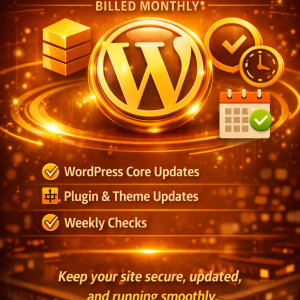
WordPress Maintenance Basics is all about keeping your site healthy over time. You may offer or use a service like WordPress Care Essentials, which typically includes WordPress core updates, plugin and theme updates, and weekly checks. In this guide, you’ll learn why updates are essential, how to manage them safely, and how to implement a practical weekly maintenance routine that minimizes risk while maximizing performance and security. You’ll find clear explanations, actionable steps, and checklists designed for real-world use.

Why updates matter for your WordPress site
Updates are not just about snagging the latest features. They are primarily about security, stability, and compatibility. When developers release updates, they typically address security vulnerabilities, fix bugs, improve performance, and adjust to changes in underlying technologies like PHP versions or web servers. Skipping updates can leave your site exposed to exploits, cause conflicts with themes or plugins, or slow down performance as other sites in your ecosystem advance.
Here are key reasons to keep your WordPress core, plugins, and themes up to date:
- Security: Static, outdated software is a magnet for hackers. Core updates patch known vulnerabilities, while plugins and themes close security gaps specific to their code.
- Compatibility: WordPress evolves. New PHP versions, hosting environments, and other software components require adjustments. Updates help ensure that everything continues to work together.
- Performance: Updates often include performance enhancements, caching improvements, and better resource usage, which can translate into faster page loads and lower hosting costs.
- Bug fixes: Even minor bugs can accumulate and affect user experience, admin workflows, or uptime. Updates address identified issues.
- Access to new features: While the primary goal is safety, updates can unlock useful features that improve your site’s capabilities and your management experience.
If you rely on your site for business, education, or community, you want a process that reduces risk while keeping you current. A well-planned maintenance routine does not just happen; it’s a deliberate practice you adopt and refine over time.
Core updates: what they are and how to handle them
What is WordPress core, and why update it regularly?
WordPress core refers to the base software that powers your site. It includes the content management system, essential functionality, and the built-in admin interface you use to publish and manage content. Core updates may include security patches, bug fixes, and performance improvements. They also ensure compatibility with newer technologies and standards.
Regular core updates protect you from known exploits and help your site run smoothly on supported environments. A small delay in applying a core update can expose you to vulnerabilities that attackers actively target.
How to approach core updates safely
- Back up before you update: A complete backup of files and the database is essential before performing any core update. This gives you a clean rollback point if something goes wrong.
- Test in a staging environment: If possible, reproduce your live site in a staging environment. Apply the core update there first to verify that essential functionality and customizations still work.
- Update during a maintenance window: If you manage a live site, consider scheduling updates during a low-traffic period. You can enable maintenance mode to prevent visitors from seeing a site in transition.
- Check after updating: After the core update, review critical areas such as the admin dashboard, contact forms, ecommerce checkout, membership login, and any custom code or plugins you rely on.
- Keep a log: Maintain a simple record of when you updated, the version numbers involved, and any issues encountered. This helps track patterns over time.
Core update workflow (quick reference)
- Prepare: Back up the site (files and database), ensure you can restore if needed.
- Update: Apply the WordPress core update from the dashboard or via CLI.
- Verify: Check essential front-end pages, admin functions, and any integrations.
- Document: Note the outcome and any follow-up tasks.
Tables can help summarize the steps (see the Update Workflow table later in this article).
What to expect after a core update
- Short maintenance notices may appear if you enable maintenance mode.
- Some plugins or themes may require updates to maintain compatibility with the new core version.
- In rare cases, you may experience a temporary disruption if a plugin or theme conflicts with the new core code. This is typically resolved with a plugin update or a rollback.
If you maintain a multi-site network or a complex build (custom code, child themes, or enterprise plugins), you may want a more formal testing plan. In many cases, a staged approach yields the best balance between safety and speed.
Plugin updates: manage risk, maximize compatibility
Why plugin updates matter
Plugins extend functionality, but they also introduce potential risk. Each plugin adds code that runs on every page request. An outdated plugin can create security vulnerabilities, conflicts, or performance bottlenecks. Keeping plugins updated reduces these risks and helps ensure smooth interaction with the WordPress core and with other plugins.
How to handle plugin updates wisely
- Prioritize updates: Start with security-related updates, then critical bug fixes, followed by feature updates. If a plugin’s developer is frequently unresponsive or the update is large and risky, test first in a staging environment.
- Check compatibility notes: Before updating, review the plugin’s changelog and compatibility information. Look for notes about PHP version requirements, WordPress version minimums, or known conflicts with other plugins.
- Use a staging environment: Always test plugin updates on a staging site before applying them to production. This gives you a safe space to verify compatibility with your theme and other plugins.
- Maintain backups: Back up before updating plugins. If an update breaks something, you can restore to the previous version quickly.
- Optionally stagger updates: If you manage many plugins, you can stagger updates across a maintenance window to monitor impact gradually and reduce risk of a site-wide failure.
- Don’t update in isolation: When possible, update a set of related plugins together if their updates are part of a coordinated release (some plugins depend on others or share functionality).
Best practices for plugin management
- Use reputable sources: Install plugins from trusted repositories or vendors with solid update histories and good support.
- Remove unused plugins: Every extra plugin adds risk. If a plugin is not essential, consider removing it to reduce the attack surface and maintenance burden.
- Test custom functionality: If you have custom code or a child theme that interacts with plugins, verify that the updates do not break customizations.
- Security considerations: For critical sites, enable security hardening and monitor for unusual activity during and after updates.
Plugin update workflow (quick reference)
- Pre-check: Read the plugin’s changelog and verify compatibility with your WordPress version and PHP version.
- Back up: Create a fresh backup before performing the update.
- Update: Apply the update in staging first, then in production if staging looks good.
- Verify: Check essential features the plugin touches, test interactions with related plugins, and confirm there are no console errors.
- Document: Record the outcome and any follow-up items.
Theme updates and compatibility
Themes control the look and structure of your site. Theme updates can introduce new features, visual changes, or updated templates. They can also alter theme settings or affect child themes and custom CSS. Treat theme updates with the same caution as core and plugin updates:
- Back up and test in staging.
- Review the update notes for any changes to templates, widgets, or customizer options.
- Check for CSS or layout regressions on key pages.
- Ensure child theme compatibility if you have a custom child theme.
Weekly checks: what you should review every week
A weekly maintenance routine helps catch issues early before they grow into bigger problems. It also gives you a predictable schedule to review performance, security, and usability.
Core areas to inspect weekly
- Security and backups: Verify that automatic backups completed successfully in the past week and that you can restore from them. Confirm that security scans, if you run them, reported no critical issues.
- Updates pulse: Check for any available WordPress core, plugin, or theme updates. Prioritize critical security updates and plan other updates for a controlled window.
- Performance metrics: Review site performance metrics such as page load times, server responses, and caching effectiveness. Address any degradation promptly.
- Uptime and monitoring: Confirm that the site is accessible. If you use uptime monitoring tools, review alerts and investigate any outages.
- Content integrity: Ensure recent posts, pages, and forms function as expected. Pay attention to contact forms, ecommerce checkout flows, and other interactive elements.
- Security posture: Review login activity and enforce security best practices, such as strong passwords and enabling two-factor authentication where possible.
A weekly checklist you can follow (simple table)
| Step | What to do | Why it matters |
|---|---|---|
| Backups | Confirm last backup completed successfully; verify you can restore | Ensures you have a recoverable point if something fails |
| Core/Plugin/Theme updates | Check for updates; plan and apply as appropriate | Reduces security risk and maintains compatibility |
| Security scans | Run or review results of security scans | Detects threats early and lowers risk of major compromise |
| Performance review | Check page load times and caching status | Improves user experience and SEO signals |
| Uptime check | Confirm site is reachable; investigate any downtime | Maintains reliability and trust with visitors |
| Content review | Test forms, checkout, subscriptions, comments moderation | Prevents broken conversions and engagement loss |
| Logs and errors | Inspect error logs for 24–72 hours after updates | Catches issues introduced by updates or plugins |
| Cleanup | Remove unused themes/plugins, optimize database monthly | Reduces attack surface and keeps site lean |
If you run a high-traffic site or a storefront, you may want to bring in more granularity or include performance tests and security checks in your weekly routine. The core idea is to create a predictable rhythm that you can follow without guessing what to do next.
Weekly checks in practice: a conversational example
Imagine you are responsible for a small business site. On Monday, you review the last week’s backups, confirm the latest updates were applied without incident, and run a quick health check. On Tuesday, you test critical customer journeys—shopping cart, contact form submission, and account login. On Wednesday, you inspect performance metrics and ensure caching is functioning as expected. Thursday might be reserved for security scans or logs review if your setup supports it. Friday becomes your time to prune unused themes/plugins and run a lightweight database optimization when necessary. On weekends, you keep an eye on uptime dashboards and plan for any larger maintenance tasks in the following week.
A practical maintenance plan you can implement
Creating a practical maintenance plan means turning theory into action. Below is a plan you can adapt to your site’s needs, whether you manage a personal blog, a portfolio site, or a small business storefront.
Step 1: Establish a backup strategy
- Frequency: Daily backups for high-traffic or transactional sites; weekly for lower-traffic sites may suffice.
- Scope: Include both files (themes, plugins, media) and the database.
- Storage: Use off-site storage or a trusted cloud backup service in addition to local copies.
- Verification: Regularly test restoration from backups to ensure you can recover quickly.
Step 2: Define an update policy
- Scheduling: Set a recurring window for updates (for example, every Tuesday morning or Friday afternoon).
- Priorities: Start with core security updates, then plugins/themes with critical fixes, followed by feature updates if there’s no risk.
- Testing: Always test updates in a staging environment first if your site is more than a simple blog or you run critical operations.
- Rollback plan: Prepare a quick rollback workflow in case an update introduces issues.
Step 3: Plan a staging environment workflow
- Create a clone of your production site with data anonymization if needed.
- Mirror hosting environment to catch environmental issues (server version, PHP mode, caching layer) before going live.
- Use staging for all major updates and theme changes to validate behavior.
Step 4: Automate what you can, without sacrificing safety
- Automations can cover backups, update notifications, and uptime monitoring.
- Automations should not prematurely deploy updates to production without a test pass.
- Maintain manual checks for critical updates that affect user experience or payments.
Step 5: Document your process and insights
- Keep a maintenance log with dates, versions, and outcomes.
- Note any issues and how you resolved them.
- Review your process quarterly to refine and improve.
Common pitfalls and how to avoid them
Even with a solid plan, you may encounter problems. Here are frequent pitfalls and practical ways to avoid them:
- Pitfall: A plugin update breaks your site layout or functionality. How to avoid: Test in staging, review the changelog, and consider delaying updates until you confirm compatibility with your theme and other plugins. If a conflict is discovered, investigate alternatives or contact the plugin author for guidance.
- Pitfall: Core update causes a white screen or admin access issue. How to avoid: Always back up first and have a quick rollback plan. If you cannot access the admin, you may need to revert to a previous core version via a backup or use a maintenance mode plugin to show a friendly message to visitors.
- Pitfall: Outdated PHP version hosting environment. How to avoid: Confirm your hosting environment meets the minimum PHP version requirements for the WordPress core and your plugins. If needed, coordinate with your hosting provider to upgrade PHP in a controlled manner.
- Pitfall: Performance regression after an update. How to avoid: Track performance metrics before updating, test the changes in staging, and investigate caching layers, database queries, and newly loaded assets. If performance worsens, consider rolling back to a stable version and seek alternatives or optimizations.
- Pitfall: Security surprises from stale backups. How to avoid: Implement automatic, verified backups with retention policies. Regularly test restores to ensure reliability.
A structured update workflow you can follow
To keep updates consistent and safe, use a clear workflow. The table below summarizes a practical approach you can adopt.
Update Workflow Table
| Stage | Actions | Purpose |
|---|---|---|
| Preparation | Create a complete backup; note current versions; check server health | Protects against data loss and helps in rollback planning |
| Staging/testing | Apply updates in staging; run automated tests; manual checks on critical paths | Identifies conflicts before affecting visitors |
| Update execution | Apply updates to production in a controlled window; monitor for errors | Safely brings your site up-to-date |
| Verification | Validate core functions, forms, checkout, and admin tasks | Confirms operations remain functional |
| Post-update | Clear caches; run performance checks; document outcomes | Ensures performance remains stable and provides a record for future reference |
Using a table like this gives you a repeatable, auditable process. If you work with a team, this table becomes a common language for how you handle WordPress maintenance.
Theme updates: additional considerations
Themes shape your site’s presentation and can influence user experience almost as much as content. While not always as frequent as core or plugin updates, theme updates can introduce important improvements or breaking changes:
- Visual changes: A theme update might adjust styles or templates. Test to catch layout issues across devices and browsers.
- Customizations risk: If you use a child theme or custom CSS, verify that updates don’t override those changes.
- Template compatibility: Ensure important templates (single post, archive, 404) still render correctly after the update.
- Localization: Language files can be updated; verify translations and strings if you depend on multilingual content.
If you rely on a commercial theme, maintain a support channel with the theme developer or vendor for guidance on updates and known issues.
Putting it all together: a sample weekly maintenance plan
Here is a practical weekly plan you can adopt or adapt. It combines the concepts above into a straightforward routine you can follow.
- Monday: Review backups and update notices. Confirm all backups completed successfully from the previous week and read any release notes for pending updates.
- Tuesday: Apply core updates in staging if available; perform basic functional tests.
- Wednesday: Test essential site paths and user interactions (forms, account access, checkout, search). Validate that critical paths work as expected.
- Thursday: Update plugins and themes in staging if possible; run compatibility checks and review changelogs.
- Friday: Apply updates to production if staging tests pass; monitor site closely for the first few hours and collect performance data.
- Saturday/Sunday: Perform light maintenance, such as pruning unused themes/plugins and reviewing security posture. Plan for any larger maintenance tasks in the coming week.
This cadence helps you stay ahead of issues while balancing downtime and intervention with normal site activity.
WordPress Care Essentials: an integrated maintenance approach
If your goal is to offer a comprehensive maintenance package, such as WordPress Care Essentials, you can structure it around:
- Regular WordPress core updates
- Routine plugin and theme updates
- Weekly checks for security, performance, and uptime
- Clear reporting and documentation for clients
A well-structured package improves site reliability, reduces support tickets, and provides measurable value to your clients or stakeholders. It also makes it easier to explain maintenance activities to non-technical users who may rely on you to keep their online presence healthy.
How to implement this knowledge on your site
If you’re managing your own site, the following practical steps will help you implement the best practices described above:
- Create a maintenance plan document: Outline your update schedule, backup policy, staging workflow, and roll-back procedures. This becomes your playbook for any future changes.
- Set up a staging environment: A separate environment that mirrors your production site is essential for testing updates and changes safely.
- Use reliable backup solutions: Invest in a robust backup system with automated schedules, off-site storage, and test restores.
- Establish a change log: Maintain a clear log of what you updated, when, and what the outcomes were. This helps track patterns and guide future decisions.
- Communicate with stakeholders: If you manage sites for clients or teams, share weekly summaries of updates and health checks to keep everyone informed.
Tables for quick reference and SEO-friendly structure
To help you scan the core ideas quickly, you can refer to these tables that summarize the essential concepts.
Table: Update workflows at a glance
| Stage | Actions | Objective |
|---|---|---|
| Preparation | Back up; note versions; ensure server health | Protect data and plan rollback |
| Staging/testing | Apply updates; run tests; verify critical paths | Detect conflicts early |
| Production update | Apply updates within a maintenance window | Keep site available with minimal risk |
| Verification | Validate key operations; confirm forms and payments | Ensure functionality after updates |
| Post-update | Clean caches; monitor performance | Confirm stability and performance |
Table: Weekly maintenance at a glance
| Area | What to review | Frequency |
|---|---|---|
| Backups | Verify success; test restore | Weekly (or as configured) |
| Core updates | Check for updates; plan timing | Weekly or as needed |
| Plugin updates | Review changelog and compatibility | Weekly |
| Theme updates | Review release notes; test | Weekly or as needed |
| Security | Scan results and access controls | Weekly |
| Performance | Load times, caching, database health | Weekly |
| Content integrity | Forms, checkout, pages | Weekly |
Table: Common issues and quick fixes
| Issue | Likely cause | Quick fix |
|---|---|---|
| White screen after update | Plugin/theme conflict | Revert to previous version via backup; deactivate conflicting plugin |
| Broken layout after theme update | CSS/templating changes | Clear caches; adjust custom CSS; review template overrides |
| Checkout failing post-update | Plugin or payment gateway conflict | Test in staging; roll back to previous plugin version if needed |
| Site slow after update | Cache or database growth; new scripts | Clear caches; optimize database; review new assets |
A final note: your maintenance mindset
Maintenance isn’t a one-off task; it’s a continuous discipline. By adopting a steady rhythm of updates and weekly checks, you reduce the likelihood of big problems arising unexpectedly. This approach protects your visitors’ experience, preserves your site’s reputation, and helps you manage resources more effectively. A consistent process is more reliable than heroic, ad hoc fixes that only address symptoms after the fact.
If you’re considering a formal service like WordPress Care Essentials, you’ll find value in a clearly defined scope, predictable cadence, and transparent reporting. A professional maintenance plan can reduce downtime, improve security, and free you to focus on content, growth, or your core business.
Recap: what you will implement
- A clear understanding of why updates are essential for WordPress core, plugins, and themes.
- A safe and repeatable workflow for applying updates, including backups and staging.
- A weekly checklist that emphasizes backups, updates, performance, security, and content integrity.
- Practical tips to avoid common pitfalls and safe rollback procedures.
- A plan to document activities and measure results over time.
By following these guidelines, you place your WordPress site on a solid maintenance footing. Your site becomes more resilient to security threats, more reliable for visitors, and easier to manage for you and any collaborators. You can use this framework whether you run a personal blog, a small business site, an ecommerce storefront, or a more complex online project.
If you’d like, I can tailor these sections into a personalized maintenance plan for your specific site, including a staging setup guide, a sample backup schedule, and a week-by-week calendar that aligns with your hosting environment and traffic patterns.








0 Comments