


Have you ever wondered what keeps your WordPress site healthy, secure, and running at peak performance week after week?

WordPress Care Essentials Explained: Core, Plugins, Themes, And Weekly Checks
This article walks you through the essentials of WordPress care so you can understand why updates and weekly checks matter, what each update covers, and how to put a practical maintenance routine in place. You’ll learn the differences between core, plugin, and theme updates, what can go wrong if you neglect them, and how weekly checks protect your site’s functionality, security, and search visibility.
What “WordPress Care” Really Means
WordPress care is the ongoing work required to keep your site functional, secure, and performing well. It includes updating the WordPress core, plugins, and themes, running backups, monitoring uptime and security, and doing routine checks to catch problems early. Think of it as routine maintenance for a complex machine—regular attention prevents failures and extends lifespan.
Why Consistent Care Matters
If you treat updates as optional, you risk downtime, security breaches, broken layouts, and poor user experience. Regular care reduces these risks and keeps your site aligned with evolving web standards, performance improvements, and compatibility changes. You’ll save time and money in the long run because small issues are easier and cheaper to fix than full recovery from an exploit or major outage.
The Business Case: cost of neglect
Neglect often leads to slow-loading pages, lost conversions, degraded SEO rankings, and time-consuming emergency fixes. For many sites, even a few hours of downtime can mean lost revenue and reputational harm. Regular maintenance is a small ongoing expense compared with emergency remediation or a compromised customer trust.
WordPress Core Updates: What They Are and Why They Matter
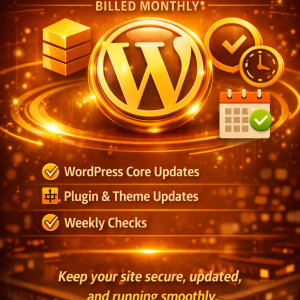
The WordPress core is the foundation of your site: the underlying software that runs WordPress itself. Core updates are released to patch security vulnerabilities, fix bugs, and introduce new features and improvements.
Types of core updates
You’ll see three types of core updates: minor (security and maintenance), major (feature releases), and development/maintenance updates. Minor security patches are critical and should be applied promptly. Major releases introduce new features and sometimes require compatibility checks with plugins and themes.
Risks of ignoring core updates
If you skip core updates you expose your site to known security vulnerabilities that attackers can exploit. You may also experience bugs or loss of compatibility with modern plugins and hosting environments. Additionally, unsupported versions might not receive future fixes or testing, creating long-term technical debt.
Best practice for core updates
- Apply minor security updates as soon as possible; many are automatically set to update by default in recent WordPress versions.
- Test major releases first on a staging site to verify compatibility with your plugins and theme.
- Keep backups prior to any core update so you can roll back quickly if something goes wrong.
Plugin Updates: Power and Peril
Plugins add functionality to your site—contact forms, SEO, commerce, caching, analytics, and more. Each plugin is written and maintained by independent developers, so plugin updates vary in quality, frequency, and risk.
Why plugin updates are essential
Plugins interact directly with the WordPress core and with each other. Updates often include security fixes, performance improvements, compatibility adjustments, and feature enhancements. When plugins are outdated, they become one of the leading entry points for attackers.
Common plugin problems after updates
After an update you might see visual glitches, functionality breaks, or fatal PHP errors due to conflicts with other plugins, your theme, or the WordPress core. That’s why controlled testing is crucial before applying updates to a live site.
How you should manage plugin updates
- Maintain an inventory of active and inactive plugins. Remove unused plugins to reduce attack surface and complexity.
- Prioritize updates for plugins that handle sensitive data (payment gateways, membership, user accounts) and security-related tools.
- Test plugin updates on staging. When testing, verify front-end and back-end functionality, forms, custom code hooks, and integrations (like CRM or email services).
- Use incremental updates: update a few plugins at a time, then check your site. This makes it easier to identify the cause if something breaks.
- Keep changelogs or release notes handy to understand what each update addresses.
Theme Updates: Design, Performance, and Compatibility
Themes control the presentation of your site. Theme updates can improve performance, accessibility, or compatibility with the latest WordPress version. Themes provided by third-party developers or marketplaces also receive fixes and enhancements.
Why theme updates matter
A theme that’s out of date can produce layout problems, broken templates, or incompatibility with page builders and plugins. Theme vulnerabilities can also be exploited by attackers to inject malicious code or deface pages.
Child themes and updates
If you use a child theme to customize a parent theme, update the parent theme regularly while keeping your child theme’s customizations intact. Never modify the parent theme files directly; you’ll lose changes when the theme updates.
Theme update best practices
- Use a child theme for customizations.
- Test theme updates on a staging site to ensure layouts and widget areas remain correct.
- Keep a snapshot of custom CSS and template modifications in version control or a documented backup.
Weekly Checks: Why Weekly Is the Sweet Spot
Weekly checks strike a balance between proactive management and resource efficiency. You get frequent enough monitoring to catch problems early without spending every day on maintenance.
What weekly checks accomplish
Weekly checks verify that backups are working, updates haven’t introduced visible issues, security scanners are clear, and performance remains acceptable. These checks help you catch small problems before they escalate and ensure your site is always ready for visitors and customers.
Frequency considerations
- For high-traffic ecommerce or news sites, daily monitoring and more aggressive update schedules might be needed.
- For most small to medium business and personal sites, a weekly cadence covers critical updates, backup verification, and site-health checks.
A Practical Weekly Checklist
Use the table below as a template for your weekly maintenance routine. Each task is focused and actionable so you can protect your site without wasting time.
| Task | Purpose | Action Steps |
|---|---|---|
| Backup verification | Ensure backups are complete and restorable | Confirm latest backup exists and test restore on staging monthly |
| Core/plugin/theme updates | Keep software patched | Review and apply non-breaking updates; test major updates on staging |
| Security scan | Detect malware or intrusions | Run a malware scanner and review security logs; remove suspicious files |
| Uptime check | Confirm site accessibility | Verify site loads from multiple regions or use an uptime monitoring service |
| Performance quick test | Detect degradation | Run a page speed test (homepage + key pages) and compare to baseline |
| Functionality spot-check | Ensure critical paths work | Test contact forms, checkout, login, search, and key landing pages |
| Error log review | Identify server-side problems | Check server/PHP error logs for new warnings or fatal errors |
| SEO and indexing review | Prevent visibility issues | Confirm no-index tags aren’t accidentally applied and check core web vitals trends |
| Plugin/theme inventory | Reduce risk | Remove unused plugins/themes and note any that need attention |
| Security settings review | Harden site | Ensure 2FA, firewall rules, and permissions remain correct |
Weekly Checks: How to Execute Them Efficiently
You don’t need to do everything manually. Use tooling and automation where practical, then perform a human review for judgment tasks.
- Automate backups and retention policies; only verify weekly that automated backups worked.
- Use managed services or monitoring tools to get alerts for downtime or security events.
- Keep a simple checklist in a project management tool to track completed tasks and any follow-up items.
- Document the outcomes of each weekly session, including any anomalies, so you can spot patterns over time.
Staging Sites: Your Safety Net
A staging environment is a copy of your live site where you can safely apply and test updates. You should always test major core updates, theme changes, and complex plugin updates on staging first.
How to set up staging
Many hosts provide one-click staging. If not, you can create staging with a subdomain, clone your database, and point the site to the copied files. Use a robots.txt or noindex to prevent the staging site from being indexed.
What to test on staging
Test full user journeys (checkout, form submission), custom code, integrations, and performance. Also test rollback procedures so you can restore production quickly if needed.
Backups: Frequency, Retention, and Testing
Backups are central to any maintenance plan. You need backups you can rely on and a tested restore process.
Backup frequency and retention
- For dynamic sites (ecommerce, membership), use daily or hourly backups depending on traffic and transaction volume.
- For brochure sites, weekly backups might be sufficient.
- Keep at least three recovery points (recent, mid-term, long-term) and store backups offsite (cloud storage, external server).
Test restores regularly
Backups are only useful if they can be restored. Perform a full restore test quarterly on staging so you can confirm your process and timing.
Security Measures Beyond Updates
Updates are the first line of defense, but you should also implement proactive security:
- Use strong passwords and enforce two-factor authentication for admin users.
- Limit login attempts and use role-based access control to reduce privileges.
- Install a web application firewall (WAF) and use server-level protections provided by your host.
- Harden file permissions and disable file editing in the WordPress admin.
- Monitor logs and set alerts for suspicious activity like repeated login failures.
Performance Maintenance
Site speed affects conversions and SEO. Regular performance maintenance includes caching, image optimization, and database clean-up.
Performance tasks to run weekly or monthly
- Clear and pre-warm cache after updates.
- Compress and optimize large images.
- Review slow queries and prune transients and unused data.
- Monitor Core Web Vitals and address regressions quickly.
SEO and Content Integrity Checks
Regularly verify that your critical pages are indexed and that meta tags, schema, and sitemaps are accurate. Updates sometimes alter robots directives or canonical tags, so a weekly SEO quick-check ensures your visibility isn’t accidentally hindered.
Handling Update Failures: A Clear Recovery Plan
Even with careful testing, updates can break things. Have a documented rollback plan so you can restore service quickly.
A simple rollback procedure
- Put site into maintenance mode to prevent new data or transactions.
- Restore from the most recent known-good backup (files and database).
- Revert the specific update on staging and diagnose the conflict.
- Apply fixes or seek plugin/theme updates and re-test on staging before returning to production.
- Communicate to stakeholders about the incident and resolution.
Who Should Do WordPress Care?
You can manage basic care yourself if you have technical comfort and time. Larger sites or businesses often hire agencies or subscribe to managed WordPress care services for consistency and expertise.
Self-care vs managed care
Self-care gives you direct control and is cost-effective for small sites. Managed services provide experienced staff, faster incident response, and often include uptime monitoring, security, and backups bundled into repeatable service-level agreements.
How to Choose a Care Plan
When evaluating care providers or building your plan, consider:
- Response time for outages or security incidents
- Backup frequency and restore testing
- Update policy and whether staging/testing is included
- Reporting and documentation of weekly checks
- Cost compared to the potential losses from downtime or compromise
Measuring the Value of WordPress Care
You can quantify care benefits by tracking downtime, site performance metrics, security incidents, and recovery time. A reduction in incidents and faster recovery times demonstrates clear ROI.
Practical metrics to track
- Uptime percentage
- Time to detect and time to resolve incidents
- Page load times and Core Web Vitals scores over time
- Number of security incidents per year
- Conversion rates and traffic trends before and after maintenance changes
Common Questions and Real-World Scenarios
You’ll likely run into a few common scenarios. Below are typical questions and concise answers.
What if an automatic update breaks my site?
If automatic updates are enabled, you should still have backups and monitoring in place. Use the restore process to revert to a working state, then test updates on staging to pinpoint the problem. Consider disabling automatic updates for major releases and handling them manually with testing.
How often should backups be tested?
Test restores at least quarterly, or more often if your site handles frequent transactions. Testing confirms both the backup integrity and the restore procedure.
Can I update everything at once?
You can, but it’s riskier. Incremental updates with testing are safer because they make it easier to identify the source of a problem.
A Sample Weekly Workflow You Can Adopt
- Verify last three backups and test a sample restore monthly.
- Run security scan and review logs.
- Apply queued minor updates (core, plugins, themes) and test critical functionality.
- Run a performance quick-test and clear cache.
- Check uptime reports and respond to any alerts.
- Remove any inactive plugins and themes.
- Document actions and any issues found.
Checklist You Can Copy
| Step | Done? | Notes |
|---|---|---|
| Backup existence and verification | [ ] | Confirm latest backup date/time |
| Apply minor updates on staging | [ ] | Test key functionality |
| Apply minor updates on production | [ ] | If staging passes |
| Run malware/security scan | [ ] | Review and resolve findings |
| Spot-check core user flows | [ ] | Contact forms, checkout, login |
| Speed check (homepage + 2 key pages) | [ ] | Compare to baseline |
| Review error logs | [ ] | Note repeated warnings |
| Remove disabled plugins/themes | [ ] | Minimize footprint |
| Record weekly report | [ ] | Save notes in maintenance log |
Final Thoughts: Protecting Your Investment
You rely on your website to represent your brand, generate leads, and sometimes process sales. Regular WordPress care—covering core, plugins, themes, and weekly checks—protects that investment. You’ll reduce risk, improve performance, and extend the useful life of the site.
If you take away one idea from this article: regular, methodical checks and cautious updates prevent the majority of emergencies. With a consistent weekly routine, tested backups, and a staging environment, you can confidently keep your site secure and performing well while minimizing surprises.
If you want, I can help you create a tailored weekly maintenance checklist for your specific site, recommend plugins and tools for backups and security, or outline a staging and update workflow you can follow. Which area would you like to address first?








0 Comments