


Are you confident your WordPress site is protected and performing at its best, even as you juggle a busy small business?

What this guide covers
You’ll get a practical, step-by-step look at WordPress care essentials designed for small businesses like yours. You’ll learn why updates matter, why weekly checks are non-negotiable, and how a simple maintenance routine can keep your site secure, fast, and reliable. By the end, you’ll have a clear path to implementing a reliable care plan that fits your schedule and budget.
What is WordPress Care Essentials?
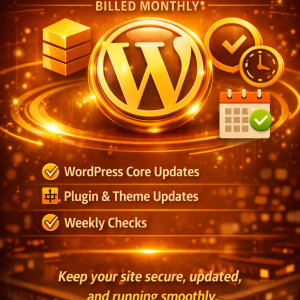
WordPress Care Essentials is a website maintenance package focused on keeping your site current, secure, and healthy. It typically includes core updates, plugin and theme updates, and weekly checks to verify everything is working as it should. You can think of it as a proactive shield and a daily health check for your online presence. When you commit to this level of care, you reduce downtime, minimize security risks, and create a smoother experience for visitors and customers.
Core updates
Core updates are changes to WordPress itself, including security fixes, performance improvements, and new features. Keeping the core up to date is foundational because many parts of your site rely on its most recent code. If you skip core updates, you’re more vulnerable to security breaches, compatibility issues, and missing out on efficiency gains. You want to ensure your site runs on the latest, vetted foundation so plugins and themes can work correctly.
- What you gain: improved security, better performance, and access to new features that can enhance your site’s capabilities.
- What to watch for: occasionally, a core update can introduce minor compatibility issues with certain plugins or themes. Your maintenance process should include testing and rollback plans.
- Practical approach: apply core updates within a controlled window, preferably after a quick backup and a quick test on staging if you have one.
Plugin & theme updates
Plugins and themes extend your site’s functionality and appearance, but they also introduce potential risks if not kept up to date. Updates can patch security holes, fix bugs, and ensure compatibility with the latest WordPress core. Delaying plugin and theme updates increases the chance of conflicts, broken features, or security gaps that attackers can exploit.
- What you gain: improved security, new features, bug fixes, and better compatibility with newer WordPress versions.
- What to watch for: some updates may cause CSS layout shifts, broken widgets, or plugin conflicts. A staged or incremental approach helps catch issues before they affect your live site.
- Practical approach: review changelogs, test critical plugins on a staging environment if available, and schedule updates during low-traffic periods.
Weekly checks
Weekly checks are your health check for the site. They’re designed to catch small problems before they become big outages. Regular checks help you maintain performance, security, and uptime, which in turn supports user trust and search rankings.
- What you gain: steadier performance, early problem detection, and fewer surprises.
- What to watch for: you’re looking for failed updates, unusual server responses, spikes in load times, broken forms, or missing content.
- Practical approach: create a consistent weekly routine that covers updates, backups, security checks, performance tests, and basic content sanity checks.
Why updates are necessary
Updates are not just about getting new features; they are essential for security, stability, and performance. Your WordPress site sits on a stack of software, and every layer—core, themes, and plugins—has its own set of code that can be vulnerable or optimized differently over time. Here’s why you should prioritize updates.
- Security hardening: WordPress core and many plugins receive security patches as new vulnerabilities are discovered. If you delay, you leave a door open for attackers to exploit outdated code.
- Compatibility and stability: when WordPress core changes, it can affect how themes and plugins interact with it. Regular updates reduce the risk of compatibility breakages that cause white screens, broken forms, or broken layouts.
- Performance improvements: updates often include performance and efficiency enhancements. You can gain faster page loads, better caching, and lower hosting resource usage with the latest code.
- Access to features and fixes: updated software brings new capabilities and bug fixes that can improve your site’s functionality and user experience. You don’t want to miss these improvements because you delayed maintenance.
Why this matters for small businesses: a slow, insecure, or broken site translates directly into lost leads, reduced trust, and potential revenue impact. If your site is a storefront, a broken checkout form or an error message can erase a sale. If it’s a portfolio, visitors may leave before contacting you. Regular updates are a small investment that pays off with higher uptime, better security, and happier customers.
Why weekly checks are necessary
Weekly checks act as a proactive safety net. They empower you to catch problems when they’re small and easy to fix, rather than letting them grow into costly outages. Here’s why weekly checks are a smart practice for small businesses.
- Early problem detection: by validating updates, checking backups, and monitoring performance weekly, you identify issues before they escalate.
- Consistent user experience: weekly verification helps ensure pages load quickly, forms submit correctly, and content displays properly across devices.
- Downtime avoidance: a short weekly review reduces the chance of unplanned downtime, which can disrupt customer interactions and SEO rankings.
- Data integrity and backups: weekly checks give you confidence that your backup routine is working and that you can recover quickly from a failure.
- SEO and trust: a site that runs smoothly with no visible errors supports better user engagement and search engine trust.
A solid weekly checks process is not one big effort; it’s a series of small, repeatable tasks. When you automate portions of this process, you save time while maintaining consistent results.
How to implement WordPress Care Essentials
Implementing care essentials doesn’t have to be overwhelming. You can start with a lightweight routine and gradually expand as your site and team grow. Here’s a practical path you can follow.
- Establish a maintenance window
- Decide on a recurring time each week when you’ll perform updates and checks. Consistency is key to building a reliable habit.
- Keep a record of what you did and any issues you encountered. This creates a traceable history you can refer back to.
- Create a backup strategy
- Before applying any updates, ensure you have a recent backup you can restore from. Automate backups if possible, but verify them regularly.
- Store backups securely (off-site or in a separate cloud location) so you can recover even if your hosting environment experiences a failure.
- Test updates in a safe environment
- If you have a staging environment or a local testing setup, apply updates there first to catch conflicts before touching production.
- If staging isn’t available, implement a quick risk assessment: identify critical plugins and themes, read their update notes, and plan the order of updates.
- Apply updates with care
- Update WordPress core first, then plugins, then themes. This reduces the chance of cascading compatibility issues.
- After updates, verify core site functions: page rendering, navigation, forms, login/logout, and checkout flows if applicable.
- Run a quick health-check routine
- Check the site’s uptime, performance, and error logs. Look for 500 errors, slow queries, or PHP error messages.
- Confirm that key pages load promptly, essential forms submit correctly, and caching is functioning as expected.
- Document results and learnings
- Note any issues encountered and how you resolved them. This becomes your reference for future updates.
- Track success metrics such as page load times, uptime percentage, and form submission rates to gauge improvement over time.
Table: WordPress Care Essentials — What to update, why, and how often
| Component | What gets updated | Why it matters | Common risks | Recommended frequency | How to reduce risk |
|---|---|---|---|---|---|
| WordPress core | Core WordPress files and codebase | Security patches, performance improvements, new features | Compatibility issues with themes/plugins; broken admin features | Typically every 1–2 weeks, or as soon as a security advisory is released | Update after review; test on staging; keep backups; have a rollback plan |
| Plugins | Individual plugins you’ve installed | Bug fixes, security patches, new capabilities | Plugin conflicts with others; outdated APIs; broken functionality | Weekly is common for active sites | Test updates in staging; update in small batches; monitor error logs |
| Themes | Theme files and assets | Security patches; compatibility with core; design refinements | CSS/JS conflicts; layout shifts; broken widgets | Weekly or when updates are available | Use well-supported themes; test updates; maintain a fallback theme |
A practical weekly maintenance checklist
To keep your site in good shape, use a structured weekly checklist. It helps you stay organized and ensures nothing slips through the cracks. The checklist below is designed for a typical small business WordPress site, though you can tailor it to your unique setup.
- Backups
- Verify that the latest backup completed successfully.
- Check that backups are stored safely and can be restored if needed.
- Core and add-on updates
- Update WordPress core first, then plugins, then themes.
- Review changelogs to anticipate potential conflicts.
- Uptime and performance checks
- Confirm your site is online and loading within an acceptable time.
- Check for any unusual spikes in resource usage or slow pages.
- Security checks
- Review security logs for failed login attempts or unusual activity.
- Ensure firewall rules or security plugins are functioning correctly.
- Functionality checks
- Test the contact forms, checkout (if you have an e-commerce setup), and newsletter signups.
- Navigate through key pages (home, services, about, blog) to verify layout and links.
- Content health
- Confirm that recent posts or pages display correctly and that internal links aren’t broken.
- Check for 404 errors and fix broken redirects if needed.
- SEO basics
- Ensure meta titles, descriptions, and schema are reasonable for important pages.
- Validate basic structured data where applicable.
- Accessibility and usability
- Quick checks for color contrast, alt text on images, and keyboard navigation.
- Documentation and notes
- Record what you updated, any issues observed, and how you resolved them.
- Schedule any follow-ups or additional tests for the next week.
Table: Weekly checklist with responsibility
| Item | What to verify | Who should do it | Frequency | Notes |
|---|---|---|---|---|
| Backups | Successful completion and accessibility | You or your tech partner | Weekly | Keep at least 2 recent backups, 1 on-site and 1 off-site |
| Core updates | WordPress core updated and functioning | You or your team | Weekly | Pause automated updates if you’re testing; verify -> deploy |
| Plugin updates | Plugins updated; no conflicts | You or your tech partner | Weekly | Update in small batches, test after each batch |
| Theme updates | Theme updated; layout intact | You or your team | Weekly | Confirm no CSS/JS regressions |
| Security checks | Unusual login activity; firewall status | You or your security tool | Weekly | Enable alerts for critical events |
| Performance checks | Page load times, server response | You or your developer | Weekly | Look for regressions after updates |
| Functionality tests | Forms, checkout, search, navigation | You or your team | Weekly | Create test submissions to verify behavior |
| Content health | Internal links, 404s, old content | You or your editors | Weekly | Refresh or remove outdated pages as needed |
| SEO basics | Metadata and schema sanity | You or your SEO plan | Weekly | Update where necessary; monitor rankings modestly |
| Documentation | Change log and notes | You or your team | Weekly | Build a knowledge base you can reuse |
Real-world benefits you’ll notice with WordPress Care Essentials
If you commit to core updates, plugin/theme updates, and consistent weekly checks, you’ll experience tangible improvements in several areas.
- Security posture improves significantly
- Regular updates close known attack vectors and reduce the likelihood of breaches. You’ll sleep a bit easier knowing your site is less exposed to common threats.
- Reliability and uptime rise
- With routine checks and timely fixes, you’ll see fewer unexpected outages. Visitors will experience less downtime, which helps maintain trust and conversions.
- Performance gains
- Updates often include performance optimizations. You’ll typically notice faster page loads, smoother interactions, and better server utilization.
- Predictable maintenance cadence
- A weekly routine creates a predictable pattern that’s manageable even for small teams. You’ll spend less time scrambling when something goes wrong.
- Cleaner, safer content management
- Regular checks keep content up-to-date and free from broken links. This sustains a professional appearance and credible user experience.
Common pitfalls to avoid
Even with a care essentials plan, you can still stumble. Here are some frequent missteps and how to avoid them.
- Skipping backups before updates
- Always create or verify backups before applying updates. If something goes wrong, you need a clean restore point. -auto-updating without testing
- Auto updates can speed things up, but they can also cause conflicts. Use automation with safeguards like staging or automatic rollback if possible.
- Ignoring staging environments
- If you skip testing in staging, you risk disrupting live users. A staging environment is your safety net.
- Overloading updates
- Piling all updates at once can create conflicts. Update in small batches and observe system behavior between batches.
- Inadequate documentation
- Without recording changes and outcomes, you’ll repeat mistakes. Build a simple change log and reference it.
How to tailor WordPress care to your small business
Your business is unique, so your WordPress maintenance plan should reflect that. Consider the following factors when customizing your approach.
- Traffic patterns
- If you have high-traffic periods (like a product launch or seasonal sale), schedule updates during lower-traffic windows and prepare a rollback plan.
- Technical expertise
- If you don’t have a dedicated tech person, simplify the plan. Use automated backups, user-friendly maintenance plugins, and a clear checklist you can follow.
- Security posture
- If you’re handling sensitive customer data or payments, you may want more rigorous security checks and a faster update cycle.
- Budget constraints
- Maintenance doesn’t have to be expensive. Start with essential updates and weekly checks, then scale as your needs grow.
Tools and practices to support your care essentials
Choosing the right tools can make care essentials practical rather than burdensome. Here are some widely used options and best-practice ideas you can consider.
- Backups
- Use a reliable backup plugin or hosting feature that allows automated daily backups and off-site storage. Test restoration quarterly to ensure you can recover quickly.
- Updates
- Favor a staged approach: test on a staging site or a controlled subset of your site before applying changes to production. This minimizes risk.
- Security
- Implement a security plugin that monitors login attempts and file changes, and consider enabling a Web Application Firewall (WAF) if your hosting supports it.
- Performance
- Use caching and a content delivery network (CDN) to speed up delivery of your pages. Run regular performance tests after updates to confirm there’s no regression.
- Monitoring
- Set up uptime monitoring with alerts. Quick notifications help you respond to issues before customers notice them.
- Documentation
- Maintain a simple, centralized log of what you updated, when, and why. This helps with audits and future troubleshooting.
A sample implementation timeline for a new WordPress care plan
If you’re starting from scratch, here’s a practical timeline you can adapt. It assumes you already have a basic hosting setup and a few essential plugins.
- Week 1: Establish the foundation
- Create a backup routine and ensure you can restore from backups.
- Review the current core, plugins, and theme versions. Note any that are outdated.
- Set your weekly maintenance time and document your plan.
- Week 2: Start updates in a controlled manner
- Update WordPress core, then plugins, then themes, in small batches.
- Run post-update checks for critical functions and form submissions.
- Implement or verify security and performance monitoring tools.
- Week 3–4: Stabilize and optimize
- Fine-tune cache settings, test site performance after updates, and adjust security rules for any new threats observed.
- Expand the weekly checks to include more content health and SEO considerations.
- Month 2 and beyond: Refine and scale
- Review the maintenance results, track metrics like uptime and load times, and adjust your schedule as needed.
- Consider automating routine tasks that don’t require human oversight, while keeping critical checks manual for safety.
Measuring success: what good care looks like
How do you know your WordPress care essentials are working? A few key indicators can tell you that you’re on the right track.
- Uptime consistency: Your site remains online most of the time with minimal, brief outages.
- Stable performance: Page load times stay within a target range, even after updates.
- Security posture: You observe very few security alerts; blocked attack attempts are minimal and manageable.
- Updated ecosystem: Core, plugins, and themes are kept current, reducing the risk of known vulnerabilities.
- Positive user experience: Visitors don’t encounter broken forms, errors, or broken layouts, and engagement metrics stay healthy.
When to consider upgrading your care plan
As your business grows, you might want to upgrade your WordPress care essentials. Consider upgrading if:
- Your site becomes a primary revenue channel and requires tighter risk mitigation.
- You add more complex features (membership systems, e-commerce, multi-language support) that increase maintenance complexity.
- Your internal team grows or you bring in external developers who need more robust workflows and documentation.
- Your hosting environment introduces new capabilities that you want to leverage (advanced backups, staging environments, automated testing).
Final thoughts
You now have a practical framework for WordPress care essentials tailored to small businesses. By combining regular core and plugin/theme updates with disciplined weekly checks, you’re building resilience into your online presence. This isn’t about constant firefighting; it’s about a sustainable routine that protects your site, preserves your brand credibility, and supports your business goals. With a thoughtful maintenance plan, you can focus more on growing your business and less on worrying about your website’s day-to-day health.
If you’d like, I can tailor this plan to your specific site details, including your hosting environment, the exact plugins you use, and your typical traffic patterns. I can also help create a simple, ready-to-use weekly maintenance checklist that you can reuse week after week.









0 Comments