

Did you realize that a single outdated plugin or theme can undo hours of work and leave your site vulnerable overnight?

How Plugin And Theme Updates Keep Your WordPress Site Running Smoothly
You rely on WordPress to present your content, run your store, or support your community. Keeping plugins and themes up to date is a core part of maintaining that reliability. This article explains why updates matter, why weekly checks matter, and how a service like WordPress Care Essentials helps you stay ahead of problems.
What this article will help you do
You’ll learn what updates actually change, how they affect security and performance, and what a practical weekly maintenance routine looks like. By the end, you’ll understand why treating updates as routine rather than optional will pay off in fewer outages, faster pages, and less stress.
Why updates are not optional
You might think updates are cosmetic or merely optional improvements, but they’re often vital. Updates frequently contain security patches, compatibility adjustments, performance improvements, and bug fixes that prevent downtime or data loss.
Security fixes are the most urgent reason
Developers release security patches when they discover vulnerabilities. An active exploit often appears shortly after a vulnerability is made public, and attackers frequently target sites running older versions. By updating, you close those doors and protect your users’ data.
Compatibility prevents cascading failures
WordPress core, plugins, and themes evolve. If one component updates and others don’t, conflicts can break functionality. Keeping components in sync reduces the risk of errors like white screens, broken forms, or failed payment processing.
Performance improvements restore and enhance speed
Developers optimize code over time. Updates can reduce memory usage, speed queries, and improve caching behavior. That means faster load times, better user experience, and improved conversion rates for your site.
Bug fixes reduce day-to-day friction
Minor bugs cause major headaches—forms that submit intermittently, layout quirks, or admin screens that crash. Many updates simply correct these issues, saving you support time and user frustration.
New features and UX improvements keep you competitive
While security and stability are primary, updates often bring new features and improvements that make your site more capable and easier to manage. You’ll benefit from modern design patterns, improved accessibility, and enhanced admin tools.
Why weekly checks are necessary
If updates are so important, why not update infrequently? Weekly checks strike a balance between responsiveness and stability. They help you catch problems early without creating churn from continuous automated changes.
Weekly checks catch regressions early
A weekly review lets you spot compatibility or performance issues quickly after an update. If a problem appears, you can revert changes or troubleshoot while the scope of the issue is still small.
Weekly checks reduce attack window
Each unpatched vulnerability is an open window. Weekly patching and verification shrink the window during which an attacker could compromise your site. That’s especially important for sites that handle user accounts, payments, or sensitive content.
Weekly checks keep backups and monitoring aligned
Performing weekly checks ensures your backup snapshots are recent and validates monitoring rules. If an update broke something, you’ll have a recent restore point and logs that show when and how the issue began.
Weekly checks support compliance and trust
If you must meet data protection or industry standards, regular maintenance is a part of good governance. Frequent checks show that you’re actively managing risks and protecting user data.
What is included in WordPress Care Essentials
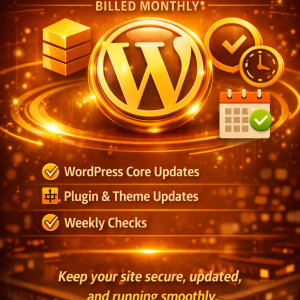
WordPress Care Essentials provides a consistent maintenance approach so you don’t have to manage everything manually. The package typically includes these core services:
- WordPress core updates
- Plugin & theme updates
- Weekly checks
These services work together to keep your site stable, secure, and performing well. The routine maintenance removes guesswork and frees you to focus on content, customers, and growth.
How each component in the package helps you
Core updates secure foundational functionality and compatibility. Plugin and theme updates address third-party code that adds features and styling. Weekly checks confirm that updates didn’t introduce issues and that your site continues to operate as expected.
What happens if you don’t update
You may assume nothing bad will happen right away, but complacency is risky. Many common issues stem from outdated components.
Risk of site compromise
Attackers scan for known vulnerabilities. Running outdated software increases your risk of breach, defacement, or malware injection. Recovery costs—both financial and reputational—can far exceed routine maintenance expenses.
Increased technical debt and higher future costs
When you postpone updates, the gap between versions grows, making future upgrades more complex and riskier. The more out-of-date your site is, the more time and testing you’ll need to upgrade safely later.
Loss of compatibility with services and APIs
If a service you rely on updates its API or authentication methods, older plugins or themes might stop working. That can break payment gateways, social integrations, analytics, or email deliveries.
SEO and performance impacts
Search engines favor secure, fast sites. Prolonged performance degradation or a hacked website can result in lower rankings and lost traffic, which directly affects revenue and visibility.
Types of updates and how urgent they are
Not all updates require identical response times. Understanding the types helps you prioritize.
Critical security updates
These resolve vulnerabilities that are actively being exploited or are highly likely to be targeted. You’ll want to apply these as quickly as possible—ideally within 24–72 hours.
Compatibility updates
Released to ensure components work with newer WordPress core versions or PHP releases. These are important to apply before you update the related component (e.g., updating a plugin after a core update).
Minor bug fixes
These fix small problems and generally carry low risk. They can be applied as part of your regular update cadence.
Feature updates
Add new capabilities or redesign interfaces. These can be scheduled for a time where you can test new behavior or train staff on changes.
Recommended update workflow
A reliable workflow reduces mistakes and helps you recover if something goes wrong. Here’s a practical routine you can apply.
Staging first, then production
Always test updates on a staging environment that mirrors your live site. That prevents unexpected conflicts from affecting users. If staging is not available, prioritize backups and possibly schedule maintenance windows for live updates.
Backup before you update
Take a full backup of files and the database before any update. Confirm that the backup is restorable. That way you can roll back quickly if an update breaks critical functionality.
Apply updates in small batches
Updating many plugins at once increases the chance of conflicts. Update related plugins one at a time or in small groups and verify site behavior between updates.
Test critical paths after updates
Check essential user journeys—logins, checkout, lead capture, form submission—immediately after updates. Also spot-check the front end and the admin dashboard.
Use version control where possible
Tracking code changes through version control makes it simpler to audit what changed and to revert custom code when necessary.
Automated updates vs. manual updates
Both approaches have pros and cons. Choosing the right mix keeps your site safe without causing unnecessary interruptions.
Automated updates: good for low-risk components
Auto-updates work well for minor security patches and for plugins/themes you trust. They reduce administrative overhead and shrink the window of vulnerability.
Manual updates: required for high-risk or customized components
If a plugin is heavily customized or central to your business logic, you’ll want to update it manually after testing. Manual updates allow you to ensure compatibility and avoid regressions.
Hybrid strategy
Many teams use automated updates for routine security patches and manual updates for major versions or critical plugins. This gives you speed and control.
Staging, testing, and rollback strategies
A robust maintenance plan includes safe ways to test and recover.
Maintain a staging environment
A staging copy helps you validate updates without affecting your live site. You can run performance tests, confirm layout integrity, and check integrations.
Use change logs and release notes
Read plugin and theme update notes to understand what changed. This helps you anticipate potential conflicts or functional changes.
Plan rollback procedures
Know how to restore backups quickly and test restore procedures periodically. Some hosting providers or care packages include one-click restores that simplify rollbacks.
How weekly checks typically work
Weekly checks are practical inspections that confirm your site’s health and catch early signs of trouble.
What a weekly check includes
- Verify that WordPress core, plugins, and themes are up to date
- Confirm successful backups and that logs indicate no recent restore events
- Check for PHP errors, slow queries, or spikes in resource usage
- Review uptime and performance metrics
- Scan for known malware signatures or unusual file changes
- Test key site functions (checkout, contact forms, search)
Running these items weekly reduces the chance that small issues become major outages.
How checks reduce long-term maintenance effort
Catching small problems early means you’ll spend less time firefighting major outages later. You’ll also keep technical debt lower by applying incremental updates rather than large, risky upgrades.
Practical checklist for weekly checks
This table gives you an actionable weekly checklist that you can follow or use to evaluate a care package.
| Item | Why it matters | Action |
|---|---|---|
| Update status (core/plugins/themes) | Prevents known vulnerabilities and compatibility issues | Apply updates or schedule them after staging tests |
| Backup verification | Ensures you can restore if needed | Confirm daily/weekly backups completed and test a restore |
| Uptime and performance metrics | Detects outages and slowdowns | Review monitoring alerts and page speed stats |
| Error logs and PHP warnings | Early indicator of failing components | Investigate and resolve recurrent errors |
| Security scan | Detects malware and suspicious activity | Run a malware scan and review results |
| Functionality tests | Ensure vital features work | Test forms, logins, checkout, and search |
| Plugin/theme health review | Identify abandoned or poorly maintained components | Consider replacements or remove unused plugins |
| Review recent changes | Understand what changed during the week | Check release notes and change logs |
Complete these tasks weekly to sustain a healthy site environment.
Prioritizing plugin and theme updates
You can’t treat every update equally. Prioritize based on risk and importance.
High priority
- Security patches
- Plugins handling payments, user authentication, or data storage
- Plugins with recent vulnerability disclosures
Medium priority
- Compatibility patches with new WordPress core or PHP versions
- Performance-related updates
Low priority
- Cosmetic or purely visual updates
- Minor feature additions that don’t affect core flows
Signs that a plugin or theme may be risky
Not all plugins are well-maintained. Look for red flags.
No recent updates
If a plugin or theme hasn’t been updated in a year or more, it may be abandoned. That raises risk for compatibility and security.
Low ratings or many unresolved support threads
Negative reviews and unanswered support tickets often indicate problems or poor support.
Lack of documentation and version compatibility notes
Good plugins provide version information and changelogs. Their absence is a warning sign.
Large, unnecessary permission requests
If a plugin asks for broad access or tries to modify unrelated parts of your site, it may be unsafe or poorly designed.
How WordPress Care Essentials helps you
WordPress Care Essentials bundles the essentials you need without forcing you to build a maintenance workflow from scratch.
Core updates and plugin/theme updates
Care Essentials keeps your WordPress core and third-party components up to date. That reduces your exposure to known vulnerabilities and compatibility issues.
Weekly checks
Weekly checks validate that updates didn’t cause problems and confirm backups and monitoring are functioning. You get rapid detection and remediation of issues before they impact users.
Time and cost savings
By outsourcing routine maintenance, you free your time to focus on content and business goals. Proactive maintenance is far cheaper than emergency recovery after a compromise or outage.
Example timeline for a week of maintenance
This timeline shows a realistic cadence for updates and checks during a weekly cycle.
Day 1: Snapshot and prepare
- Create a full backup
- Check monitoring alerts and server health
Day 2: Staging updates
- Apply plugin and theme updates on staging
- Run automated and manual tests
Day 3: Testing
- Validate key user flows
- Run performance and security scans on staging
Day 4: Production updates
- Apply vetted updates to production, off-peak if possible
- Monitor logs for unusual behavior
Day 5: Post-update verification
- Re-check backups and monitoring
- Confirm site speed and functionality
Day 6–7: Review and plan
- Review change logs and issues
- Prioritize next week’s action items
Incident handling and emergency response
Even with weekly checks, incidents can occur. Having a plan reduces downtime.
Immediate steps after an incident
- Put the site into maintenance mode if necessary
- Restore from a verified backup if recovery is the fastest path
- Isolate affected systems and change credentials
- Communicate transparently with stakeholders and users
Post-incident review
After restoring service, conduct a root cause analysis. Update processes to prevent recurrence and document lessons learned.
Cost-benefit perspective
Maintenance costs are predictable and scalable, while the cost of recovery after a compromise is often unpredictable and high.
Direct costs of neglect
- Lost revenue from downtime
- Fees for emergency forensic analysis and cleanup
- Potential fines or penalties for data breaches
Benefits of maintenance
- Lower risk of breaches and downtime
- Better user experience and conversions
- Less time spent on urgent fixes and more time on growth
Frequently asked questions
You probably have practical questions about timing, responsibility, and risk. These answers help you make informed decisions.
How often should I update plugins and themes?
Aim for weekly checks and apply critical security updates immediately. Routine updates can follow your weekly cadence after testing on staging.
Can updates break my customizations?
Yes—custom code that modifies plugins or themes can be overwritten. Use child themes for customizations, and keep custom code in separate repositories where possible.
What if I don’t have a staging environment?
If you lack staging, ensure you have reliable backups and schedule updates during low-traffic periods. Consider using a maintenance provider that includes staging as part of the service.
Are automatic updates safe?
Automatic updates are safe for many minor and security-related patches, especially for well-maintained plugins. For critical or heavily customized components, prefer manual updates after testing.
What should I do about abandoned plugins?
Replace them with actively maintained alternatives or remove unnecessary features. Abandoned plugins increase long-term risk.
Final checklist to keep your site running smoothly
This short checklist summarizes the core actions you should follow each week.
- Verify backups and test restore procedures
- Check for and apply critical security patches immediately
- Run updates on staging, test core user flows, then push to production
- Monitor uptime, performance, and error logs
- Remove or replace abandoned or risky plugins/themes
- Document changes and keep release notes for auditing
Conclusion
If you protect your site with consistent plugin and theme updates plus routine weekly checks, you’ll substantially reduce security risks, maintain performance, and avoid costly surprises. WordPress Care Essentials packages these practices into a manageable routine: core updates, plugin and theme updates, and weekly checks. That combination keeps your site secure, reliable, and ready to support your goals—without consuming your time or creating unnecessary risk.
You can treat updates as an ongoing investment rather than a chore, and your site will reward you with fewer incidents, faster recovery, and a better experience for every visitor.








0 Comments