


Have you checked whether your WordPress plugins are up to date today?

Why Outdated WordPress Plugins Are A Security Risk
Outdated plugins are a common entry point for attackers. You may have built your site with care, but if any of the plugins you rely on are not current, you could be leaving doors open for trouble. You deserve a site that runs smoothly, protects your visitors, and preserves your hard work. Keeping plugins up to date is one of the simplest and most effective ways to shore up security and reduce risk.
The core idea: updates patch more than features
When a plugin developer releases an update, they are not only adding new features or improving performance. They are also patching security vulnerabilities, fixing bugs, and addressing compatibility issues that could otherwise cause failures or exposure. You might think, “But I only need the latest features.” In truth, the security patches are the most critical reason to update. Those patches close gaps that attackers could exploit to access your site, steal data, or deface pages. By staying current, you reduce your attack surface and gain new protections that reflect the evolving threat landscape.
How vulnerabilities live in plugin code
Plugins are built by many different developers, some of whom are small teams or individuals. Code in these plugins may have flaws—logic errors, insecure data handling, or outdated libraries—that attackers can misuse. When a plugin is not updated, every one of those flaws remains present and, in some cases, becomes easier to exploit as other parts of the software ecosystem change. The longer a vulnerability sits in place, the higher the chance that someone discovers it and uses it against you. Even if your site looks fine, unseen weaknesses can lurk in the code.
The risk landscape today
The reality is that the internet is full of automated tools that scan popular sites for known vulnerabilities. Attackers don’t target only high-profile sites; they probe thousands of sites for outdated plugins and themes. If your site is on an older version, you may become a routine target, especially if you have common plugins that a lot of sites rely on. You don’t have to be a large company to be in the crosshairs—small sites can be as attractive to attackers as big ones if they have exploitable weaknesses. The cost of inaction can be substantial: data loss, compromised credentials, SEO penalties, and a damaged reputation that takes time to repair.
How updates fix vulnerabilities
Updates do several essential things that reduce risk:
- They apply security patches that fix known flaws in the plugin’s code.
- They remove or replace insecure functions and improve how data is handled.
- They update libraries and dependencies that plugins rely on, closing gaps that could be exploited.
- They address compatibility issues that could otherwise cause misbehavior or enable abuse if combined with other vulnerabilities.
- They often include improvements to error handling, logging, and telemetry that help you detect problems sooner.
When you apply updates, you’re not just adding new features; you’re sealing known holes and strengthening the overall defensive posture of your site.
The difference between security updates and feature updates
Security updates are specifically designed to close vulnerabilities and reduce risk. Feature updates introduce new capabilities or refine how a plugin works, which can be beneficial but is not the same as a security patch. It’s possible for a security-focused update to be a minor one, and for a feature-focused update to come with security improvements as well. The key point: you should treat security updates as high-priority. If you can’t apply every update immediately, prioritize patches that fix vulnerabilities and accessibility improvements that affect how your site is protected.
The role of WordPress core, plugins, and themes
Security is a layered effort. WordPress core provides baseline protections, but the real surface area often sits with plugins and themes. Core updates fix vulnerabilities in the framework that runs your site. Plugin updates patch flaws in third-party extensions that add functionality to your pages. Theme updates improve not only appearance but also the security of how your site renders content and stores data. Each layer depends on the others to maintain a consistent, secure experience for your visitors. When any layer lags behind, the entire stack becomes more vulnerable.
Real-world impact on your site
Outdated plugins can cause a cascade of problems beyond a single vulnerability. A single compromised plugin can lead to:
- A hack that redirects visitors, injects malicious scripts, or steals credentials.
- Data breaches that expose customer information or private content.
- SEO penalties or blacklisting by search engines after malware detection.
- Slower performance or unstable behavior due to compatibility issues with the core or other plugins.
- Downtime during updates or after conflicts, which disrupts business operations and user trust.
You don’t want your site to become a case study in what happens when maintenance is postponed. The financial and reputational costs can be significant, and the impact can extend well beyond your initial security incident.
Why weekly checks matter
Updates are essential, but they’re only part of the picture. Even when you apply patches, you still need to verify that everything continues to run smoothly. Weekly checks help you catch issues early, before they escalate into outages or data problems. Regular checks also ensure that backups are current, that security scans are up to date, and that you’re ready to respond quickly if something goes wrong. Proactively monitoring your site reduces downtime, protects visitors, and gives you confidence that you’re staying ahead of threats rather than chasing after them after an incident.
What to include in weekly checks
A robust weekly check includes several components that work together to keep your site secure and healthy. Here’s what you should assess on a regular basis:
- Core, plugin, and theme update status
- Backups: verification, integrity checks, and restoration tests
- Security scans and malware monitoring
- Performance and uptime monitoring
- User accounts and access controls
- Logs and audit trails review
- Content and accessibility checks
- Environment and configuration audits
- Incident response readiness and runbooks
Each of these areas contributes to a safer, more reliable site. By integrating them into a regular routine, you create a predictable maintenance cadence that reduces risk and increases confidence.
What to include in weekly checks (detailed view)
- Core, plugin, and theme update status: You should confirm that your WordPress core is current and that every active plugin and theme has the latest security patches. If any updates are pending, you can schedule a maintenance window or perform updates in a staged manner to minimize risk.
- Backups: You need functional backups that can be restored quickly. Verify that your last backup completed successfully, confirm that the backup contains the necessary files and database, and perform a quick restoration test on a staging environment to ensure recovery works as expected.
- Security scans and malware monitoring: Run a malware scan and review any alerts from your security plugin. If you see suspicious files or unusual behavior, you should investigate immediately and isolate affected areas if needed.
- Performance and uptime monitoring: Monitor page load times and uptime metrics. A sudden slowdown or a drop in availability can indicate underlying issues—sometimes related to updated plugins or server changes.
- User accounts and access controls: Review who has administrator-level access and what permissions they hold. Remove any stale accounts and revert credentials if you detect suspicious activity.
- Logs and audit trails: Check security and access logs for unusual activity, failed login attempts, or changes to critical settings. Early detection helps you respond quickly.
- Content and accessibility checks: Ensure that content renders correctly and that accessibility standards remain intact after updates. Some updates can affect shortcodes, widgets, or dynamic content.
- Environment and configuration audits: Confirm that your staging and production environments are aligned and that configuration files (like wp-config.php) reflect best practices.
- Incident response readiness and runbooks: Keep your plan for how to respond to incidents up-to-date. If something goes wrong, you should have clear steps for containment, recovery, and communication.
The maintenance plan that helps you stay secure: WordPress Care Essentials
Your site deserves a maintenance package that makes security effortless and predictable. WordPress Care Essentials is designed to cover the core needs that most sites have: keeping WordPress core updated, ensuring plugins and themes stay current, and performing weekly checks to catch issues before they cause trouble. This approach translates into fewer surprises, better reliability, and a stronger security posture for you and your visitors.
What WordPress Care Essentials includes
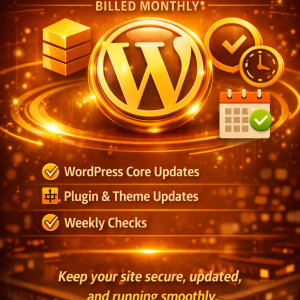
- WordPress core updates: You get regular, timely core updates that bring security fixes and performance improvements. You’ll be protected against known core vulnerabilities that could otherwise be exploited.
- Plugin & theme updates: All active plugins and themes receive updates as needed, with prioritization given to security patches and critical fixes. This reduces the risk of exploits in third-party code.
- Weekly checks: A structured weekly review covers backups, update status, security monitoring, performance, and other essential health checks. Regular evaluation helps you detect and respond quickly to any problem.
Two core benefits of this approach are risk reduction and predictable operation. You’ll know that your site is being looked after on a consistent schedule, and you’ll have documented evidence of the updates that keep you protected.
Why this approach works for most WordPress owners
- It emphasizes security first: Updates are prioritized to quickly close vulnerabilities.
- It reduces downtime risk: Regular checks help you catch issues early and plan maintenance with minimal disruption.
- It scales with your needs: As your site grows, you can add more checks or extend monitoring while preserving the core structure.
- It provides clarity: You’ll have a clear cadence and a record of updates, which helps with audits, reporting, and peace of mind.
Practical steps to implement WordPress Care Essentials
- Set a fixed weekly window: Choose a time when traffic is typically lower so maintenance is less disruptive.
- Schedule updates in a controlled manner: Apply core, plugin, and theme updates in a staged workflow, ideally on a development or staging site first if possible.
- Verify backups after every major change: Ensure you can restore from the latest backup and that restores work quickly.
- Review security alerts and vulnerability feeds: Stay in sync with reputable security resources so you can act on new threats promptly.
- Maintain an incident response plan: Have a go-to checklist for containment, notification, and recovery if something goes wrong.
A practical weekly maintenance workflow you can start today
- Day 1: Review backup status and verify that the most recent backup completed successfully. Schedule a quick restore test if you can, to confirm it’s usable.
- Day 2: Check for updates across WordPress core, plugins, and themes. Prioritize security patches and critical fixes, applying those first.
- Day 3: Run a malware and security scan, then review results and address any flagged items. If you detect suspicious files, investigate immediately and isolate changes as needed.
- Day 4: Monitor site performance and uptime metrics. Compare against baseline measurements to spot changes that may require attention.
- Day 5: Audit user accounts and access controls. Remove stale accounts and review recent admin activities for any anomalies.
- Day 6: Review logs and audit trails. Look for unusual login attempts, changes in settings, or unexpected file modifications.
- Day 7: Conduct a light content and accessibility check. Ensure pages render correctly and that critical content remains accessible after updates.
If you implement this cycle consistently, you’ll notice fewer surprises, quicker recovery if something does go wrong, and a stronger foundation for growth.
A simple, repeatable weekly maintenance checklist (at a glance)
- Core updates status: Confirm up to date
- Plugin updates status: Confirm up to date for active plugins
- Theme updates status: Confirm up to date
- Backups: Verify success and integrity; test restoration
- Security scans: Run and review findings
- Performance: Check load times and server response
- Uptime: Confirm site remains online consistently
- Access controls: Review admin accounts and permissions
- Logs: Review for unusual activity
- Content checks: Validate rendering and accessibility
- Environment: Confirm staging/production alignment
- Incident plan: Review and update runbooks
Table: Quick reference for update actions and vulnerabilities
| Vulnerability type | Common cause | Why updates help | Practical impact if unpatched |
|---|---|---|---|
| SQL injection | Insecure data handling; outdated input validation | Patches tighten data handling and sanitize inputs | Data leakage; unauthorized DB access; potential full site compromise |
| Cross-site scripting (XSS) | Insufficient output escaping; outdated libraries | Patches improve escaping & validation; fix vulnerable dependencies | Malicious scripts executing in visitors’ browsers; credential theft |
| Remote code execution (RCE) | Compromised plugin code; exploitable functions | Security patches remove insecure code paths; safer defaults | Attacker runs code on your server; full control of site |
| Privilege escalation | Flawed access controls in plugins | Patch to ensure proper permission checks | Unauthorized users gain admin access; site defacement or data theft |
| CSRF (Cross-Site Request Forgery) | Missing CSRF protections | Updates strengthen request verification | Unauthorized actions performed on behalf of visitors or admins |
Note: The table above is a compact summary. The exact vulnerability and patch details vary by plugin and WordPress version, so always review the release notes for each update and test in a staging environment when possible.
The importance of a staged update process
Staging updates before applying them to production helps you avoid surprises. In a staged workflow, you test updates in a controlled environment that mirrors your live site. This helps you catch plugin conflicts, layout issues, or broken features without disrupting visitors. After verifying that updates perform as expected, you push them to production with confidence. If something doesn’t behave as planned, you can roll back to the previous working state while you troubleshoot. A staged process may require a small upfront time investment, but it pays off in reduced downtime and fewer support tickets.
Practical tips for you to reduce update friction
- Use a reliable backup solution that offers quick restore and validation features.
- Maintain a staging environment that mirrors production so you can test updates safely.
- Enable automatic backups prior to major updates if your hosting environment supports it.
- Prioritize critical security updates and patch high-risk plugins first.
- Document your update decisions and outcomes so you have a clear history for audits and future planning.
Why weekly checks complement automatic updates
Automatic updates can be a strong line of defense, but they don’t cover every scenario. Some updates may cause compatibility issues with custom code, or they may interact with server configurations in unexpected ways. Weekly checks give you a human layer of oversight to verify the outcome of updates, validate that backups are sound, and ensure that your site continues to perform well. This blended approach provides resilience and reduces the chance that you’ll be caught off guard by issues you could have prevented.
Common myths about WordPress updates and maintenance
- Myth: Updates always break something. Reality: While compatibility issues can occur, a thoughtful upgrade strategy, staged testing, and proper backups dramatically reduce the risk of disruption.
- Myth: Security is someone else’s problem. Reality: Security is a shared responsibility that involves the site owner, the hosting environment, the plugins you trust, and the developers who maintain them.
- Myth: You only need updates when something breaks. Reality: Many breaches exploit known vulnerabilities in unpatched plugins; timely updates are a proactive measure, not a reaction.
- Myth: Backups alone protect you. Reality: Backups are essential, but you still need to verify integrity, test restoration, and confirm that updates won’t cause new problems in production.
Final thoughts: tailoring a plan to your site
Every WordPress site has unique needs, including different plugins, traffic patterns, and data sensitivity. A one-size-fits-all approach often falls short. By combining regular updates with disciplined weekly checks, you create a tailored security and reliability plan that aligns with your goals and risk tolerance. If you operate a small personal blog, your plan might be lighter but still consistent. If you run an e-commerce store or handle sensitive customer data, your plan will be more rigorous, with prioritized patching windows, more frequent tests, and tighter access controls. The core idea remains the same: a steady rhythm of updates plus careful weekly checks is your best defense against outdated plugins turning into security risks.
If you want to take your site security to the next level without becoming overwhelmed, consider a packaged approach that includes core updates, plugin and theme updates, and regular weekly checks. WordPress Care Essentials is built around that structure, giving you a reliable cadence you can trust. It’s not about chasing every new feature; it’s about preserving a robust foundation so you can focus on growing your site with confidence.
Would you like help setting up a simple weekly maintenance schedule for your site or guidance on selecting a staging environment and backup strategy that fits your hosting plan?






0 Comments