

Do you know why keeping WordPress core, plugins, and themes up to date is non-negotiable for your site?

Why Updating WordPress Core, Plugins, And Themes Is Non-Negotiable
Your website runs on software that is constantly evolving. Updates are not just about new features; they are your primary line of defense against threats, performance bottlenecks, and compatibility issues that can disrupt your online presence. When you treat updates as optional, you expose your site to a cascade of problems that can affect user experience, search engine rankings, and even your revenue. In this section, you’ll learn why updates matter across the core, plugins, and themes, and how they work together to keep your site healthy.
- Updates are security patches, bug fixes, and compatibility improvements rolled into one. By staying current, you minimize the window of opportunity that attackers have to exploit known vulnerabilities.
- Your site relies on a chain of components. If the core is up to date but a plugin isn’t, you create a weak link. If a theme isn’t updated, you can encounter styling or functionality breakages that disrupt user interactions.
- Regular updates aren’t solely about risk reduction; they unlock new capabilities, performance improvements, and better developer support. You benefit from faster pages, fewer errors, and more reliable integrations.
Why this matters for you: you want your visitors to have a safe, smooth, and fast experience, and updates are the best tool you have to ensure that experience remains consistent over time.
What WordPress Core Updates Do for Your Site
Core updates are the foundation of your WordPress installation. They bring security enhancements, performance improvements, and compatibility fixes that protect and optimize how your site runs. When you apply core updates promptly, you help ensure:
- Security patches close vulnerabilities that could be exploited by hackers attempting to gain access to your admin area, your data, or your visitors’ information.
- Performance enhancements can make your site faster, especially under heavier traffic or mobile usage, which benefits user satisfaction and SEO.
- Compatibility with newer PHP versions, browsers, and hosting environments keeps your site running smoothly as the broader web ecosystem changes.
What you gain from staying current: fewer security incidents, fewer compatibility surprises after a plugin or theme update, and a more stable foundation for all your site’s features.
What Plugins and Themes Do for Your Site
Plugins extend WordPress functionality, while themes control appearance and some behavior. Updating these components ensures that you don’t miss critical fixes, compatibility updates, or performance improvements that affect both look and function. Specifically, updates help you:
- Eliminate known bugs that can cause errors, conflicts, or unexpected behavior.
- Receive security patches for vulnerable code paths that third-party developers rely on to fix issues quickly.
- Improve performance through optimized code paths, better asset loading, and refined database queries.
- Maintain compatibility with WordPress core updates and with changes in PHP, server configurations, or third-party services.
Why this matters for you: you want to deliver a reliable interface to your audience, without interruptions from broken features, white screens, or layout shifts that frustrate users.
The Role of Theme Updates in Your Site’s Experience
Themes control the visual and interactive layer of your site. They often package essential features, page templates, and styling rules that affect every page. When you keep themes updated, you benefit from:
- Security protections that reduce the risk of theme-specific vulnerabilities becoming entry points for attackers.
- Compatibility fixes that ensure your layouts render correctly across devices and browsers, especially after WordPress core changes.
- Access to new design features and styling options that can improve your brand presentation and user engagement.
You gain more reliable control over your branding and customer journey, with fewer layout surprises and better cross-device consistency.
The Interplay Between Updates and Your Site’s Performance
Performance isn’t a separate feature; it’s a side effect of well-maintained code. Core, plugin, and theme updates often include optimizations that reduce server load, speed up page rendering, and minimize unnecessary database queries. When you keep everything current, you’re more likely to see:
- Faster page loads, measured by improved Core Web Vitals metrics.
- Smoother interactivity, with fewer blocking scripts or slow third-party calls.
- Efficient caching and asset management that reduce server strain during traffic spikes.
This is not magic—it’s coordinated development work that you benefit from when updates are applied regularly.
A Practical View: How Updates Protect Your Data
Your data is precious, and updates contribute to its protection in several ways:
- Core updates often fix data handling flaws and improve authentication flows, reducing the risk of unauthorized access.
- Plugins frequently touch data storage, forms, e-commerce carts, and user profiles. Updates fix vulnerabilities and improve data validation.
- Themes can influence how data is displayed and stored, including custom fields and template logic. Updates help prevent data integrity issues and display errors.
When you do updates consistently, you reduce the likelihood of data corruption, leakage, or loss that could otherwise occur during major version changes or month-to-month activity.
The Bottom Line on Non-Negotiable Updates
If you want your site to remain secure, fast, and reliable, you treat updates as a core maintenance task rather than a side chore. You’re not merely adding features; you’re safeguarding your audience’s trust, your search presence, and your ability to grow without being knocked offline by a preventable problem.
How Updates Work Across WordPress Core, Plugins, And Themes
To handle updates effectively, you need a clear picture of how updates propagate and how to manage potential conflicts. This section walks you through the typical update lifecycle, common pitfalls, and strategies to keep your site stable.
Update Lifecycle: From Notification to Deployment
- Notification: WordPress core, plugins, and themes notify you when a new version is available. You’ll see update badges in the admin dashboard.
- Review: You review what’s changing. Release notes explain security fixes, feature enhancements, and compatibility notes.
- Backup: You take a backup before applying updates. This safety net lets you revert if something goes awry.
- Deployment: You apply the updates. This can be done all at once or in staged batches, especially on larger sites.
- Verification: You verify that the site loads correctly, forms submit, and key functionalities work as expected.
- Monitoring: You observe performance and error logs for a short period after update to catch any subtle issues.
Why you should follow this lifecycle: it minimizes risk, gives you a clear rollback path, and helps you identify problems early before they impact visitors.
Common Compatibility Scenarios and How to Handle Them
- Scenario: A plugin update breaks your page builder or a custom widget.
- Remedy: Check the plugin’s documentation for the new version’s compatibility notes; test in a staging environment if possible; consider temporarily rolling back the plugin version while you investigate a fix or alternative approach.
- Scenario: A theme update conflicts with a custom child theme or a plugin that hooks into theme templates.
- Remedy: Review the change log, test in a staging environment, and be prepared to adjust custom code or templates to align with the new version.
- Scenario: Core update introduces PHP compatibility changes.
- Remedy: Ensure your hosting environment supports the recommended PHP version; update PHP if needed, and verify that all critical plugins and themes support it.
By anticipating these scenarios, you reduce downtime and maintain a smooth user experience.
The Risk Spectrum: When Updates Go Wrong
Not every update causes a problem, but when issues do occur, they can range from minor CSS tweaks to the entire site going down. Understanding the risk spectrum helps you plan:
- Low risk: A small visual tweak or minor performance improvement. Often resolved quickly with a rollback or minor adjustments.
- Medium risk: A feature change or compatibility adjustment that requires testing in a staging environment.
- High risk: A core or essential plugin/theme update that disrupts critical functionality like e-commerce checkout or user authentication. This scenario calls for a rapid rollback plan and emergency support.
Your plan should include a tested rollback procedure so you can recover quickly if an update introduces an unexpected issue.
The Value of a Staging Environment
A staging environment mirrors your live site so you can test updates before they reach your visitors. Staging helps you:
- Detect compatibility issues without impacting real users.
- Verify functionality, forms, checkout flows, and interactive elements in a controlled setting.
- Reduce the risk of downtime and broken user experiences.
If you don’t have a staging site, you should consider creating a lightweight environment or using a managed hosting solution that provides one. The extra effort saves you time and headaches in the long run.
Why Weekly Checks Are Non-Negotiable for Smooth Operation
Updates are essential, but they don’t stop there. Weekly checks create a predictable rhythm that catches issues early, keeps you aligned with security practices, and helps you maintain an authoritative, high-performing site. You’ll benefit from early detection of problems that a monthly or quarterly cadence would miss, and you’ll maintain a consistent baseline for site health.
- Regular checks help you spot small problems before they escalate into major outages.
- Weekly cadence keeps you aligned with security advisories and plugin release cycles.
- Routine checks support client reporting, audits, and ongoing optimization planning.
The goal is not just to react to problems, but to anticipate and prevent them through disciplined maintenance.
Weekly Check Breakdown: What You Should Do Each Week
To make weekly checks practical, you can follow a concise, repeatable routine. Here’s a breakdown you can adapt to your site’s needs. Each item has a short rationale so you understand why it matters.
- Core updates review: Confirm whether a core update is available, and plan a safe deployment window.
- Plugins and themes review: Check for new versions, assess release notes, and plan updates with backups.
- Backup verification: Ensure your latest backup completed successfully and can be restored if needed.
- Security scans: Run a quick security check for malware, unauthorized access attempts, and known vulnerabilities.
- PerformanceSnapshot: Run a lightweight performance check to catch unusual slowdowns or errors.
- Uptime monitoring: Confirm the site is reachable from multiple locations and compare with historical data.
- Error logs review: Scan error logs for recurring warnings or fatal errors that could indicate conflicts.
- Broken link and media checks: Verify that links and media assets on important pages still function.
- Accessibility and usability checks: Ensure critical pages remain usable for all users, including form submissions.
- SEO health checks: Review page indexing status, canonical tags, and any crawl issues.
When you follow these checks weekly, you create a stable environment that supports growth and reduces emergency firefighting.
How a Weekly Checks Table Helps You See at a Glance
Tables can simplify the complexity of weekly maintenance by giving you a single view of tasks, ownership, and completion status. Here’s a simple table you can adapt.
| Task | What to Check | Frequency | Responsible Person | Notes |
|---|---|---|---|---|
| Core updates review | Check for WordPress core updates and release notes | Weekly | You or your tech contact | Schedule a maintenance window if needed |
| Plugins/themes updates | Check for updates, compatibility notes, and required tests | Weekly | You or your team | Backup before applying updates |
| Backups | Ensure last backup completed successfully and can be restored | Weekly | You or your hosting/provider | Verify restoration path |
| Security scans | Run malware and vulnerability checks | Weekly | You or security admin | Address any flagged items |
| Performance checks | Run a quick page speed and resource usage check | Weekly | You or performance engineer | Note any deviations |
| Uptime | Confirm site is reachable from multiple regions | Weekly | You or monitoring service | Look for outages or latency spikes |
| Error logs | Review PHP, JS, and server error logs | Weekly | You or dev/ops | Investigate repeated warnings |
| Broken links/media | Scan for 404s and missing media | Weekly | You or content team | Fix or replace missing assets |
| Accessibility | Check key forms and navigational elements | Weekly | You or QA | Ensure usability for all users |
| SEO health | Audit crawl status, indexing issues, and redirects | Weekly | You or SEO specialist | Align with ongoing optimization |
Why this helps you: a weekly table turns maintenance into a manageable, visible process. You can track progress, assign ownership, and ensure nothing slips through the cracks.
Practical Weekly Maintenance Plan: A Starter Template
If you’re building a maintenance habit from scratch, here’s a practical starter plan you can adapt. It’s designed to be simple yet effective, so you can implement it quickly and grow from there.
- Day 1: Core updates window and backups
- Review available core updates, plan a safe deployment window, perform a full backup snapshot, and then apply the updates.
- Day 2: Plugins and themes refresh
- Check for available plugin and theme updates, review release notes, and perform staged updates with site-wide checks afterwards.
- Day 3: Security and monitoring
- Run a security scan, review firewall rules, and ensure there are no obvious indicators of compromise.
- Day 4: Performance and caching
- Check caching configurations, test pages for speed, and adjust as needed to maintain or improve Core Web Vitals metrics.
- Day 5: Content and media health
- Audit internal links, broken media, and ensure new content aligns with SEO and accessibility guidelines.
- Day 6: Backups and reliability
- Verify that the latest backup is valid, perform a mock restore test, and confirm recovery pathways.
- Day 7: Review and planning
- Review weekly results, note any recurring issues, and plan improvements for the next week.
This plan is a starting point. You can customize frequency (daily checks for high-traffic sites, for example) and depth of checks based on risk, site complexity, and your team capacity.
A Clear, Actionable Checklist for Updates and Weekly Health
To translate theory into practice, here’s a consolidated checklist you can reference regularly. Use this as your baseline, then expand with your site’s unique needs.
-
Before updating:
- Back up the entire site (files and database).
- Check release notes for core, plugin, and theme updates.
- Confirm PHP version compatibility with updated components.
- Ensure you have a rollback plan and know how to restore from backups.
-
During updates:
- Apply updates in a staged manner if possible.
- Verify after each major update that critical features (forms, checkout, login) work as expected.
- Monitor the site for the first 15–30 minutes after updates, looking for errors or performance changes.
-
After updates:
- Run a quick content and form test across devices.
- Check error logs for new warnings or messages.
- Revisit security scan results and address any flagged items.
- Document what was updated and any observed impact for future reference.
-
Weekly hygiene:
- Review update availability and apply as appropriate.
- Run backups and verify restorability.
- Conduct the weekly checks table and address any issues.
- Update stakeholders with a concise health summary.
The habit you build with this checklist reduces risk and increases confidence that your site remains in peak condition.
Why Weekly Checks Are Worth the Investment
If you’re weighing whether weekly checks are worth it, consider the alternative: reactive maintenance after something breaks. Proactive weekly checks:
- Reduces downtime by catching issues early, often before visitors notice anything amiss.
- Keeps security surfaces clean by addressing patches and advisories promptly.
- Improves user experience through stable performance and fewer feature regressions.
Think of weekly checks as a strategic investment in reliability, trust, and business continuity. When you protect the visitor experience, you protect your brand and revenue.
The Role of WordPress Care Essentials
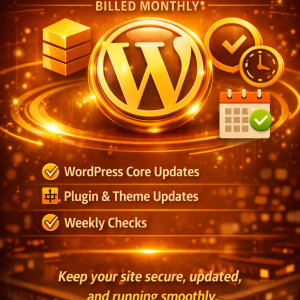
You mentioned a WordPress Care Essentials package that includes core updates, plugin and theme updates, and weekly checks. This package is designed precisely to convert maintenance into a repeatable, high-value service. Here’s what such a package typically delivers and why it matters:
- Time savings: You avoid the endless cycle of chasing updates, testing, and debugging. The maintenance package provides a structured flow that reduces your cognitive load.
- Consistency: Weekly checks create a predictable routine for your team or your clients, which improves trust and reporting accuracy.
- Risk reduction: Regular backups, tests, and security checks dramatically lower the chance of a breakpoint that disrupts your site.
- Professionalism: A well-managed maintenance plan signals to users and stakeholders that you care about quality and reliability, which strengthens credibility.
In practice, WordPress Care Essentials helps you stay ahead of changes in the WordPress ecosystem and avoid the common avoidable pitfalls that plague under-maintained sites.
How a Care Essentials Package Is Implemented
- Establish a baseline: Document the current versions of WordPress core, plugins, and themes; confirm the hosting environment and backup status.
- Define the cadence: Set weekly tasks for updates, backups, security checks, and health verification.
- Monitor and report: Create concise weekly or monthly reports that summarize updates performed, issues found, and actions taken.
- Iterate: Continuously refine the process based on site performance, new security advisories, and evolving business needs.
This approach aligns with best practices and ensures you have a defensible, repeatable maintenance workflow.
Common Myths About Updating and Maintenance
You may encounter misconceptions that lead you to delay updates. Here are common myths and the truths that counter them:
- Myth: Updates always break sites.
- Truth: While some updates can cause conflicts, proper testing, backups, and staged deployments significantly minimize risk.
- Myth: I’ll update only when I have time.
- Truth: Delaying updates creates risk by increasing exposure to security threats and compatibility issues.
- Myth: My hosting handles everything.
- Truth: Hosting providers often manage the server environment, but updates to WordPress core, themes, and plugins are your responsibility or your maintenance partner’s responsibility. Security and performance are a shared responsibility.
- Myth: A few plugins can be ignored indefinitely.
- Truth: Even if a plugin seems small, outdated plugins can create vulnerabilities or compatibility problems that ripple across the site.
Addressing these myths helps you maintain a disciplined maintenance mindset that benefits your site in the long run.
Practical Considerations for Different Site Types
Your maintenance approach should reflect the nature of your site—whether you’re running a personal blog, a small business site, an e-commerce storefront, or a large enterprise platform. Here are some nuances to consider:
- Personal or portfolio sites:
- Prioritize stability and visual integrity. Schedule updates during low-traffic periods, and keep backups readily available.
- Small business sites:
- Emphasize security for customer data, form reliability, and payment integrity. Ensure your e-commerce and contact forms function after updates.
- E-commerce platforms (WooCommerce, etc.):
- Weigh updates against checkout reliability, payment gateway compatibility, and inventory management. Test the shopping flow extensively in a staging environment before going live.
- High-traffic or enterprise sites:
- Invest in a robust staging environment, automated rollback capabilities, and a formal change management process. Consider a professional maintenance partner to handle complex updates and audits.
Your site type should guide the depth of testing and the frequency of full-scale checks.
Tools and Resources to Support Updates and Weekly Checks
Choosing the right tools can make updates and weekly checks faster, safer, and more reliable. Consider incorporating these into your workflow:
- Version control and staging:
- Use a staging environment, Git workflows for code changes, and a rollback plan for critical updates.
- Backup and recovery:
- Rely on reputable backup plugins or hosting solutions that offer automated backups, with tested restore procedures.
- Security:
- Implement a security plugin that monitors for malware, file changes, and login anomalies. Regularly review security reports.
- Performance:
- Use performance testing tools and a caching strategy that aligns with your site’s needs. Monitor Core Web Vitals scores.
- Monitoring:
- Implement uptime monitoring from multiple locations to catch outages quickly and confirm recurrences.
- Visibility and reporting:
- Create dashboards or regular reports that summarize updates performed, issues found, and the health status of the site.
These tools support your maintenance routine and provide insight to guide future updates.
A Concrete Example: How Updates and Weekly Checks Played Out on a Real Site
Imagine you manage a mid-sized e-commerce site running WooCommerce on WordPress. The site has a mix of custom product templates, a handful of essential plugins for payments and shipping, and a theme that controls the storefront’s look and feel.
- Before any update, you back up the entire site and database.
- You check the release notes for the latest core, plugin, and theme versions.
- You test the updates in a staging environment that mirrors your live site.
- After confirming compatibility and performance, you apply the updates to production during a low-traffic window.
- You monitor for the next 24–48 hours, checking for checkout issues, login problems, and critical error logs.
- You perform a weekly health check, including backups, security scans, performance tests, and a quick content and link audit.
Because you followed a structured process, you avoided downtime during peak shopping hours and preserved a smooth customer experience. Your customers continued to trust the site, and you preserved your revenue and reputation.
The Digital Trust You Build Through Consistent Maintenance
When you commit to regular updates and weekly checks, you’re not just maintaining a website—you’re preserving trust. Your audience expects reliable access, fast performance, and secure handling of their information. A well-maintained site communicates that you take their security and experience seriously. That trust translates into higher engagement, stronger conversions, and a better chance to grow your online presence over time.
Final Thoughts: Your Path to Non-Negotiable Maintenance
Updating WordPress core, plugins, and themes is not a one-off task or a quarterly ritual. It is a disciplined practice that underpins security, performance, and reliability. By adopting a weekly maintenance cadence, you reduce risk, simplify incident response, and keep your site aligned with the evolving WordPress ecosystem.
You’ll benefit from predictable operations, clear accountability, and a stronger foundation for future growth. If you’re considering professional support, a service like WordPress Care Essentials can provide a structured, hands-off approach that ensures your core, plugins, and themes are updated on a reliable schedule with weekly health checks. You’ll have more time to focus on your content, your products, and your audience, while knowing that your site remains in capable hands.
If you’re ready to take the next step, start with a simple baseline plan: commit to weekly checks, schedule a regular update window, and keep a consistent backup and rollback routine. Over time, this approach becomes second nature, and you’ll reap the benefits of a secure, fast, and dependable WordPress site that serves your goals and your visitors well.
Would you like a customized starter plan and a ready-to-use maintenance checklist you can implement today, aligned with your site’s specific plugins, themes, and traffic levels?







0 Comments