

Do you know if your WordPress site is getting the maintenance it deserves?

WordPress Maintenance Checklist: Core Updates, Plugins, Themes, Weekly Checks
Keeping your WordPress site healthy isn’t a one-and-done task. It’s a discipline that involves regular updates, careful testing, and a consistent weekly rhythm. When you treat maintenance as part of your site’s lifecycle, you reduce the risk of security breaches, performance bottlenecks, and unexpected downtime. Think of maintenance as the invisible backbone that keeps your content accessible, fast, and secure for your visitors and customers.
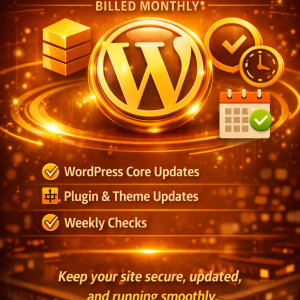
WordPress Care Essentials is a website maintenance package that includes core updates, plugin and theme updates, and weekly checks. These elements work together to ensure your site remains secure, compatible, and optimized. In this guide, you’ll discover why updates are essential, how weekly checks keep things running smoothly, and practical steps you can implement today to establish a reliable maintenance workflow.
Why updates matter
Updates are not simply about getting the latest features. They’re about preserving the integrity, security, and performance of your site. Here’s what happens when you stay current—and what happens if you don’t.
- Security patches fix vulnerabilities. Attackers continuously probe for weaknesses, and outdated software is a common entry point. Applying core, plugin, and theme updates reduces your exposure to known exploits.
- Bug fixes improve stability. Updates address issues reported by users and developers. Even small fixes can prevent larger problems that affect uptime and user experience.
- Compatibility with the broader ecosystem. WordPress core, PHP versions, and hosting environments evolve. Updates help keep your site compatible with other software you rely on, from security services to caching plugins.
- Performance and efficiency gains. Some updates optimize code paths, reduce resource usage, and improve load times. A faster site benefits your visitors and search rankings.
- New features with caution. While updates can add beneficial features, you should test them in a staging environment before enabling them on your live site to avoid surprises.
You’ll notice a common thread: proactive maintenance minimizes risk and saves you time and money in the long run. If you rely on your site for revenue, education, or community engagement, small, regular maintenance windows are a smart investment.
Core updates: keeping WordPress itself current
What core updates do for your site
Core updates apply to the WordPress software that powers your site. They often include security improvements, performance enhancements, accessibility improvements, and bug fixes. When you apply a core update, you’re aligning your site with the latest standards and capabilities of WordPress.
- Security improvements reduce the risk of compromise.
- Compatibility with modern PHP versions keeps your site running smoothly.
- Performance enhancements can translate into faster page loads.
- Access to ongoing developer support and ecosystem improvements.
When and how to update
- Schedule updates during a low-traffic window whenever possible.
- Back up your site before applying any core updates. This gives you a safe restore point if anything goes wrong.
- Apply updates in a staged approach: test first in a staging environment, then push to production after verification.
- Check site functionality after the update, including form submissions, login flows, and core features.
Risks and how to mitigate them
- Incompatibilities with plugins or themes can cause errors. Mitigate by testing in a staging environment and reviewing the change log for any known issues.
- Custom code or child themes may rely on deprecated features. Review deprecation notices and update custom code as needed.
- If a major PHP version change is involved, ensure your hosting supports the new version and that your themes and plugins are compatible.
Plugins updates: balance feature needs with safety
Why plugin updates matter
Plugins extend WordPress with features you rely on, from contact forms to e-commerce, caching, SEO, security, and analytics. However, plugins can also be a source of conflicts or performance problems if not maintained properly. Regular plugin updates help you:
- Benefit from security patches that protect against vulnerabilities.
- Access performance improvements and new functionality.
- Improve compatibility with WordPress core and other plugins.
Managing plugin updates effectively
- Prioritize essential plugins first: security, payment, forms, and SEO tools often have the highest impact on your site’s function.
- Update in a controlled sequence: start with critical plugins, then test, then update non-essential ones.
- Use a staging environment to test updates before applying them to production.
- Review plugin changelogs for breaking changes or deprecated features.
- Remove or replace plugins that are no longer maintained or essential.
How to test plugin updates
- After updating, verify key interactions: form submissions, checkout flows, user registrations, and login/logout processes.
- Check for JavaScript or CSS errors in the browser console and validate responsive behavior on mobile devices.
- Confirm that caching or optimization plugins still function as expected after updates.
- Validate any integration points with external services, such as payment gateways or email providers.
Theme updates: preserve design integrity
The role of themes
Themes control the look and user experience of your site. Theme updates can bring design enhancements, accessibility improvements, and compatibility fixes, but they can also impact layout and customizations. Regular theme updates help you:
- Maintain consistent design with current WordPress capabilities.
- Address security vulnerabilities in theme code.
- Ensure compatibility with updated plugins and core features.
Safe updating practices
- Test theme updates in a staging environment, especially if you rely on theme-specific templates or custom CSS/JS.
- Back up before applying changes, and ensure you have a plan to reapply any customizations if needed.
- If you use a child theme, updates to the parent theme should not automatically overwrite customizations. Verify your child theme remains intact and working.
- Review any theme-specific settings or options after an update to confirm everything is as expected.
When to delay a theme update
- If you rely on a heavily customized theme with bespoke templates, a major theme update could require additional adjustments.
- If the theme is no longer actively maintained, you may want to consider alternatives, as security and compatibility risks rise.
Weekly checks: the heartbeat of your site
Weekly checks are your opportunity to verify that everything remains functional and that no new issues have appeared. A consistent weekly cadence catches problems early and reduces the chance of cascading downtime.
What to include in weekly checks
- Core status: confirm WordPress core is up to date and the site reports no critical errors.
- Plugin status: verify all essential plugins are up to date and functioning.
- Theme status: ensure themes are current and display correctly across devices.
- Security posture: review basic security signals, such as login attempts, plugin vulnerabilities, and firewall activity.
- Backups: confirm that the most recent backup completed successfully and that you can restore from it.
- Performance checks: review site speed, caching, and CDN status if you use them.
- Content checks: ensure new posts or pages render correctly, and media assets load as expected.
- Accessibility and mobile experience: skim for obvious issues on mobile devices and with screen readers.
A weekly checklist you can follow
The weekly routine is designed to be efficient yet thorough. Use it as a starting point and tailor it to your site’s specific needs.
- Core update verification
- Plugin update verification
- Theme update verification
- Backup verification
- Uptime monitoring
- Security scan (basic)
- Performance check (LCP, TTFB)
- Form and transactional flows test
- Content rendering checks
- Spam and comment moderation
- Analytics and search console sanity checks
A practical maintenance workflow you can implement
A well-structured workflow makes maintenance predictable. Here’s a practical, repeatable approach you can adopt.
- Prepare
- Schedule a weekly maintenance window or a quiet time.
- Create or confirm a staging environment for testing.
- Back up the live site (files and database).
- Core updates
- Check for any available WordPress core updates.
- Apply updates in staging first; test critical paths.
- If stable, apply to production during the maintenance window.
- Plugin updates
- Review available updates by importance and compatibility.
- Update in staging, then verify core flows.
- Apply on production if testing passes.
- Theme updates
- Confirm that the theme is compatible with the latest WordPress core and plugins.
- Test in staging for layout integrity and customization.
- Push to production if everything looks correct.
- Health checks
- Validate backups, uptime, and security signals.
- Run performance tests and monitor any changes after updates.
- Check accessibility, mobile rendering, and form submissions.
- Documentation and notes
- Document the changes you applied, including any issues or considerations.
- Update any internal runbooks or manuals if needed.
- Post-update monitoring
- Monitor for 24–72 hours for any subtle issues.
- Be prepared to rollback if critical problems emerge.
Security and backups: the safety net
Security and backups are the safety net that ensures you can recover quickly from problems. They should be non-negotiable parts of your weekly maintenance routine.
-
Backups
- Maintain daily or at least weekly backups, with at least one off-site copy.
- Test restores regularly to ensure you can recover quickly.
- Keep backups for a reasonable retention period (e.g., 2–4 weeks) and purge older copies as needed.
-
Security
- Use trusted security plugins or hosting features to monitor for threats.
- Review login activity and restrict access to sensitive areas.
- Keep your site behind a firewall if possible and implement rate limiting for login attempts.
Testing updates in a staging environment
Staging environments are essential for safe updates. They give you a mirror of production to test changes without impacting visitors.
- Create a staging site that mirrors your production configuration.
- Replicate data safely (use anonymized data if needed).
- Test updates for core, plugins, and themes.
- Validate all critical flows, including checkout, contact forms, user registrations, and login.
- After confirming stability, push changes to production.
If you don’t have a staging environment, consider lightweight alternatives such as a local development setup or a clone of the live site on a subdomain. Even a basic staging workflow can prevent a lot of production issues.
Compatibility considerations: avoid surprises
Even when everything is up to date, compatibility issues can still arise. Here are practical tips to minimize surprises.
- Favor well-maintained plugins and themes with regular updates and strong support.
- Avoid updating many components at once on a high-traffic site without testing.
- Check for deprecated functions or PHP compatibility notes in update logs.
- Use a child theme for customizations to prevent overwriting changes with theme updates.
- Keep an eye on critical dependencies such as page builders, form builders, and ecommerce solutions.
Tools and techniques to streamline maintenance
A few tools can make weekly maintenance easier and more reliable.
-
WordPress CLI (WP-CLI)
- Perform updates, backups, and scans quickly via command line.
- Example commands: wp core update, wp plugin update –all, wp theme update –all, wp db export
-
Monitoring and uptime services
- Use monitoring services to alert you if the site goes down, or if response times spike.
-
Staging and deployment tools
- Use deployment workflows to promote changes from staging to production in a controlled manner.
-
Backup solutions
- Choose a reliable backup plugin or hosting feature with automated schedules and off-site storage.
-
Security plugins and services
- Schedule regular security scans and enable firewall rules appropriate for your site.
A concrete weekly maintenance checklist (summary table)
Below is a concise snapshot you can reuse. It’s designed to be straightforward and actionable, ensuring you don’t miss essential tasks.
| Task category | What to check | Frequency | Responsibility | Notes |
|---|---|---|---|---|
| Core updates | Check for WordPress core updates; review changelog | Weekly | You or designated admin | Back up before updating; test in staging if possible |
| Plugins updates | Check for plugin updates; review compatibility | Weekly | You or designated admin | Prioritize security-critical plugins; test after update |
| Themes updates | Check for theme updates; verify customizations | Weekly | You or designated admin | Use child theme for customizations; test layout |
| Backups | Verify last backup completed; test restore | Weekly | You or designated admin | Off-site copy; ensure database and files are included |
| Uptime and performance | Monitor uptime; review load times | Weekly | You or designated admin | Address spikes; check caching/CDN status |
| Security checks | Review login activity; scan for vulnerabilities | Weekly | You or designated admin | Tighten login security if needed; review alerts |
| Content verification | Open key pages; verify media loads | Weekly | Content owner or admin | Check newly published posts for formatting |
| Form and commerce flows | Test forms, checkout, and payment flows | Weekly | Admin or QA | Ensure successful submissions; test edge cases |
| Analytics and SEO | Check analytics data; monitor search console messages | Weekly | SEO specialist or admin | Watch for sudden dips or spikes; investigate |
If you’d like, you can adapt this table to your hosting environment and the specific plugins you rely on. The table above is a practical starting point to align your weekly checks with your site’s real-world needs.
A more detailed weekly workflow sample
To make this actionable, here is a more detailed workflow you can implement, broken down into a typical 60–90 minute weekly window.
-
0–10 minutes: Quick status snapshot
- Check whether the site is online and performing at a baseline level.
- Review last week’s incident log and any tickets opened.
-
10–25 minutes: Core updates and plugin readiness
- Check for available core updates and note any potential risks.
- Review plugin updates with attention to security patches or major version bumps.
-
25–45 minutes: Test in staging
- Apply core updates in staging and run through critical paths.
- Apply plugin and theme updates in staging; test for conflicts.
-
45–60 minutes: Live deployment
- If staging testing is clean, push updates to production during a controlled window.
- Validate essential user journeys (login, search, contact forms, checkout if applicable).
-
60–75 minutes: Backups and security checks
- Confirm that backups completed successfully and can be restored.
- Review basic security dashboards and login activity.
-
75–90 minutes: Performance and content checks
- Run quick performance tests (page load times, caching functioning).
- Check new or updated content for display issues.
This workflow can be adjusted to fit shorter or longer maintenance sessions and to accommodate your site’s complexity. The key is consistency: a predictable cadence reduces risk and builds confidence over time.
What if something goes wrong?
No maintenance plan is perfect. When something goes wrong after an update, you’ll want a clear rollback or remediation path.
-
Rollback plan
- Maintain clean backup copies that you can restore to revert to a known good state.
- In staging, you can replicate the rollback to ensure you know how to perform it on production.
-
Troubleshooting steps
- Review error messages and logs to identify the root cause.
- Disable a plugin or revert a theme update to isolate the issue.
- Check for JavaScript errors in the browser console that could affect interactivity or layout.
- Verify PHP error logs if server-side issues occur.
-
Communication
- If you manage a site for clients or a team, communicate clearly about the issue and expected resolution time.
- Provide a status update and any workarounds to minimize user impact.
Building a sustainable maintenance culture
Maintenance is most effective when it becomes a routine rather than an exception. Here are practical strategies to embed maintenance into your regular workflow.
-
Schedule regular maintenance time
- Treat it like a recurring meeting that you cannot miss.
- Set reminders to ensure you don’t skip your weekly checks.
-
Establish clear ownership
- Define who is responsible for updates, backups, and testing.
- Document responsibilities so that new team members can follow the same process.
-
Use automation where appropriate
- Automate routine tasks such as backups and basic security scans.
- Leverage staging environments and deployment tools to minimize manual steps.
-
Create a reference playbook
- Maintain a concise, up-to-date playbook with steps for updates, testing, backups, and rollback.
- Include links to changelogs and relevant documentation so you can quickly assess impact.
-
Review and refine
- Periodically review your maintenance plan for bottlenecks or new risk areas.
- Adjust your cadence based on site growth, traffic, or changes to your tech stack.
The relationship between maintenance and growth
A robust maintenance process does more than prevent problems. It creates a foundation for growth by ensuring:
- Reliability: Visitors experience consistent performance and uptime.
- Security: Your site stays safeguarded against evolving threats.
- Compatibility: New features and integrations work smoothly.
- Confidence: You can plan and execute updates without fear of downtime.
As your site evolves—whether you add an online store, expand your blog, or grow a community—your maintenance needs will adapt. By investing time in core updates, plugins, themes, and weekly checks, you’re building resilience into your site’s operation.
Real-world considerations and best practices
- Start with a baseline
- Establish a baseline for your update cadence, backups, and monitoring. This baseline will guide you as your site grows.
- Prioritize high-impact updates
- If you must choose, prioritize security updates and critical bug fixes. Non-essential feature updates can be scheduled later.
- Keep a changelog
- Document what you updated and why. This helps with troubleshooting and onboarding new team members.
- Test, test, test
- Never underestimate the value of testing in staging. It’s your best defense against breaking production.
- Don’t rush major updates
- When a major update includes breaking changes, allocate extra time for testing and potential code adjustments.
Final thoughts
Maintenance is not a one-off chore; it’s an ongoing commitment to your site’s health. By embracing a structured approach to core updates, plugin and theme updates, and weekly checks, you reduce risk, improve performance, and create a more reliable foundation for your content and business goals. Your site deserves that level of attention, and your visitors benefit from a smoother, more secure experience.
If you’d like, you can customize this framework to fit your unique site, audience, and hosting environment. The principles remain the same: stay current, test thoroughly, back up regularly, and maintain a steady weekly rhythm. With a little discipline, you’ll enjoy the confidence that comes with knowing your WordPress site is well cared for—and ready to grow with you.








0 Comments